
You can save your payment details securely with Stripe so that future invoices are paid automatically. Most invoices are for your domain renewals and web hosting, but this applies to any invoices on your account.
Step 1: Sign In
Go to gravityhost.co.uk/account and sign in with your email and password.
Step 2: Go to Billing
Click Billing in the sidebar menu. You'll see your invoices, payment status, and automatic payment settings.
Step 3: Pay an Invoice with Your Card
Click Pay Now next to any unpaid invoice, or click Pay All at the top to pay everything at once. You'll be taken to Stripe's secure checkout page to enter your card details.
Your card details are never stored on our servers — they're encrypted and stored securely by Stripe.
Step 4: Automatic Payments
On the Billing page, look for the Automatic Payments section. Once you've paid with a card, auto-pay activates and your card will be charged automatically when future invoices are generated.
You can disable auto-pay at any time from this section.
Changing Your Card
To switch to a different card, click Update Card in the Automatic Payments section. This opens Stripe's secure page where you can enter new card details.
What Gets Charged Automatically?
- Domain renewal invoices
- Web hosting renewal invoices
- Any other invoices generated on your account
You'll always receive an email before any charge, so there are no surprises.
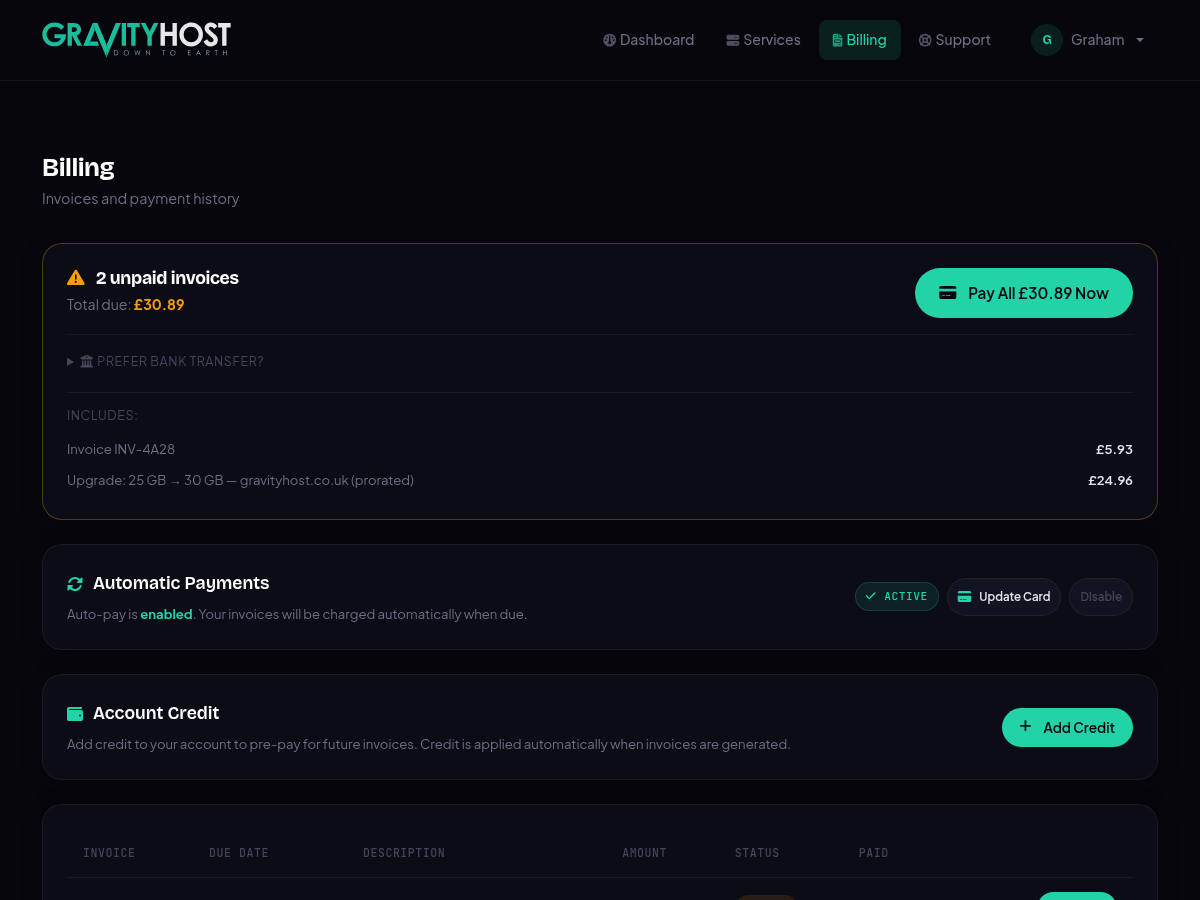
The Billing page showing invoices, auto-pay status, and payment options