
Checking Your Usage
Your dashboard shows a storage bar for each hosting account. For a detailed breakdown, click Manage on your hosting service, then click Disk Usage in cPanel.
What Uses Space?
- Website files — HTML, CSS, JS, images, uploads (usually in
public_html) - Email — Stored emails and attachments (can grow large over time)
- Databases — MySQL databases for WordPress and other applications
- Backups — Any manual backups stored in your account
- Logs — Access and error logs (auto-rotated, usually small)
Freeing Up Space
- Email cleanup — Delete old emails with large attachments from your webmail
- Clear WordPress cache — If using LiteSpeed Cache, go to LiteSpeed Cache > Toolbox > Purge All
- Remove unused themes/plugins — In WordPress, delete any inactive themes or plugins
- Optimise images — Use a plugin like ShortPixel or Imagify to compress uploaded images
- Check
/tmp— Sometimes temporary files accumulate. These are safe to delete.
Need More Space?
You can upgrade your plan at any time. Upgrades take effect immediately with prorated billing.
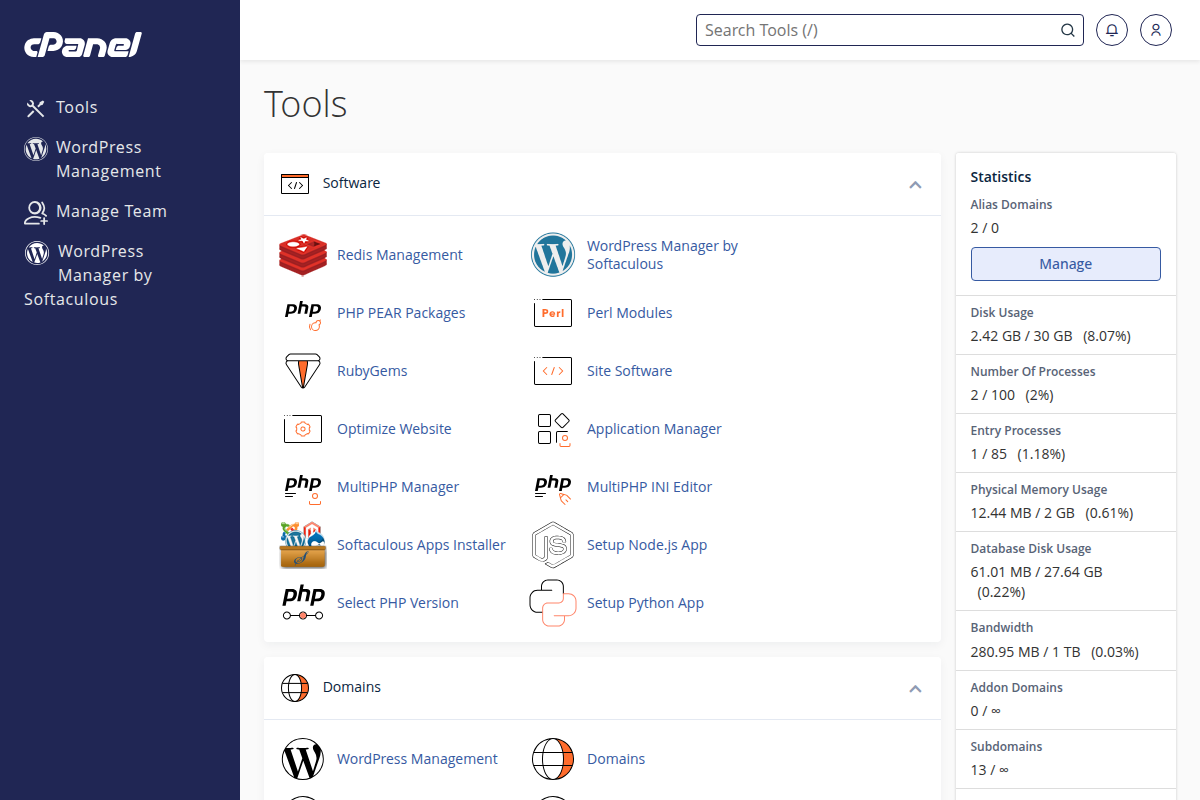
Access Disk Usage from the cPanel dashboard