
How Upgrades Work
Every Gravity Host plan includes the same features — the only difference is storage space (15 GB, 20 GB, 25 GB, 30 GB). You can upgrade at any time and the change takes effect immediately.
How to Upgrade
- Log in to your client area
- On your dashboard, find your hosting service
- Click the Upgrade button next to your plan size
- Choose your new plan size
- Review the prorated cost and confirm
Prorated Billing
When you upgrade mid-cycle, you only pay the difference for the remaining time. For example, if you upgrade from 15 GB (£75/yr) to 20 GB (£100/yr) halfway through your billing period, you'd pay £12.50 for the remaining 6 months — not the full annual price.
Downgrades
To downgrade your plan, open a support ticket and we'll adjust your plan. Make sure your current disk usage is below the new plan's limit before requesting a downgrade.
Check Your Current Usage
Your dashboard shows a storage bar for each hosting account. You can also see detailed usage in cPanel under Disk Usage.
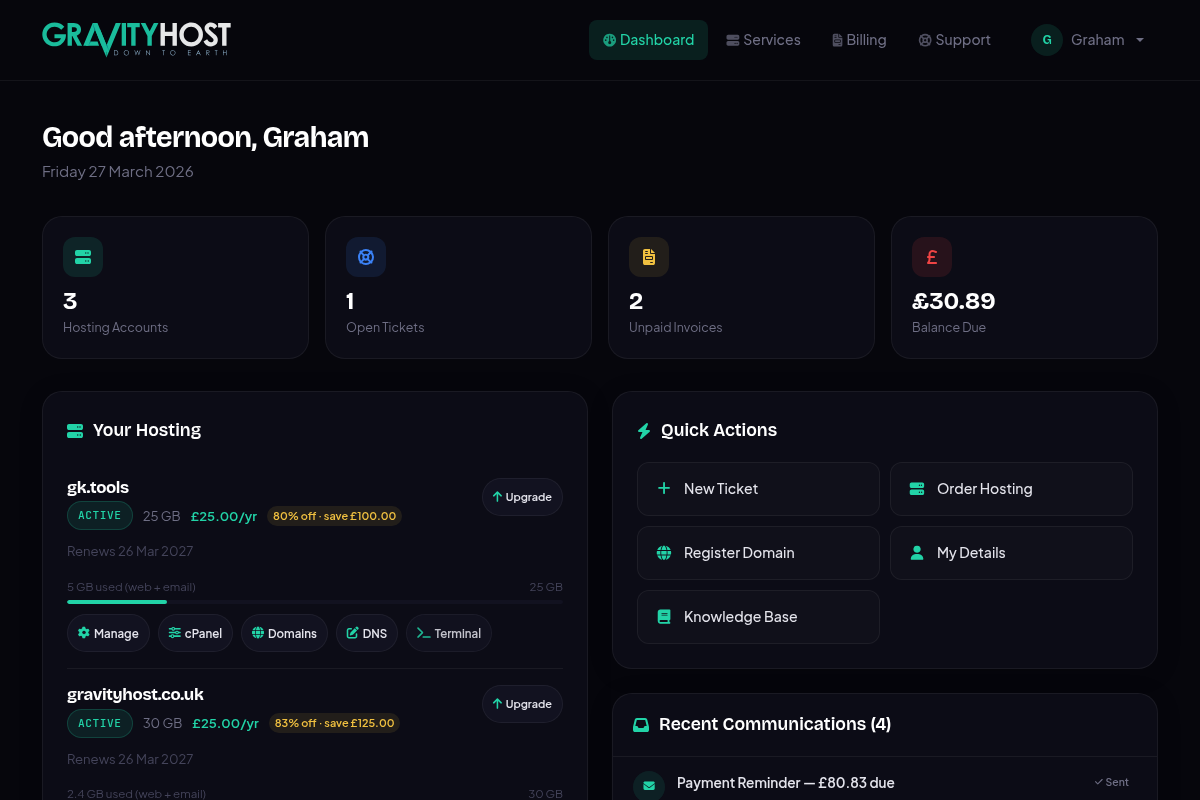
Your dashboard — click Manage on any hosting service to find the Upgrade option