
Accessing phpMyAdmin
From your service page, click phpMyAdmin in the quick access grid. This opens the database management tool directly — no separate login needed.
Common Tasks
Importing a Database
- Select your database from the left sidebar
- Click the Import tab
- Click Choose File and select your
.sqlfile - Click Go to start the import
Exporting a Database (Backup)
- Select your database from the left sidebar
- Click the Export tab
- Choose Quick export method and SQL format
- Click Go — your browser will download the
.sqlfile
Creating a New Database
Use MySQL Databases in cPanel (not phpMyAdmin) to create new databases and assign users to them.
WordPress Database
Your WordPress database name and credentials are in your wp-config.php file. Be careful editing WordPress tables directly — always take a backup first using JetBackup.
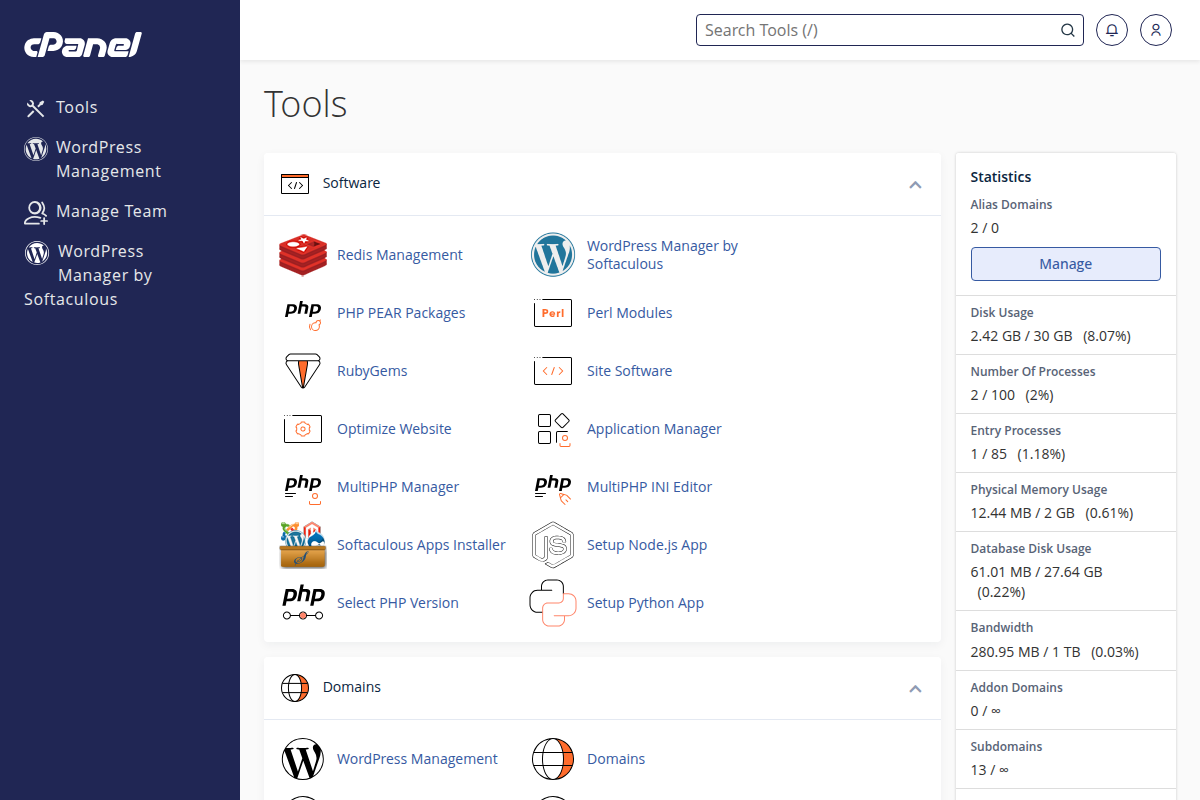
Access phpMyAdmin from your service page or cPanel