Setting up a WordPress website is quick and easy using Softaculous in your cPanel hosting control panel. Follow the steps below to get started:
Step-by-Step Guide
- Log in to cPanel
- From your dashboard, click the cPanel button next to your domain. This logs you in automatically — no separate password needed.
- From your dashboard, click the cPanel button next to your domain. This logs you in automatically — no separate password needed.
- Find the Softaculous App Installer
- Scroll down to the Software section in cPanel.
- Click on Softaculous Apps Installer.
- Select WordPress
- Inside Softaculous, click the WordPress icon (usually near the top or listed under “Blogs”).
- Inside Softaculous, click the WordPress icon (usually near the top or listed under “Blogs”).
- Click “Install Now”
- On the WordPress overview page, click the Install Now button.
- On the WordPress overview page, click the Install Now button.
- Fill in Your Site Details
- Choose your domain from the dropdown list.
- For “In Directory”, leave it blank if you want WordPress at your main domain (e.g.,
yourdomain.com). - Set your site name, description, and choose your admin username and password.
- Enter your admin email address.
- Choose Options and Install
- You can select a theme now, or leave the default and change it later from the WordPress dashboard.
- Review your settings and click Install at the bottom of the page.
- Access Your WordPress Site
- Once the installation is complete, Softaculous will give you links to your new website and the WordPress admin area (usually
yourdomain.com/wp-admin).
- Once the installation is complete, Softaculous will give you links to your new website and the WordPress admin area (usually
Need Help?
If you have any questions or run into issues during setup, contact Gravity Host support and we’ll be happy to help you get started with WordPress.
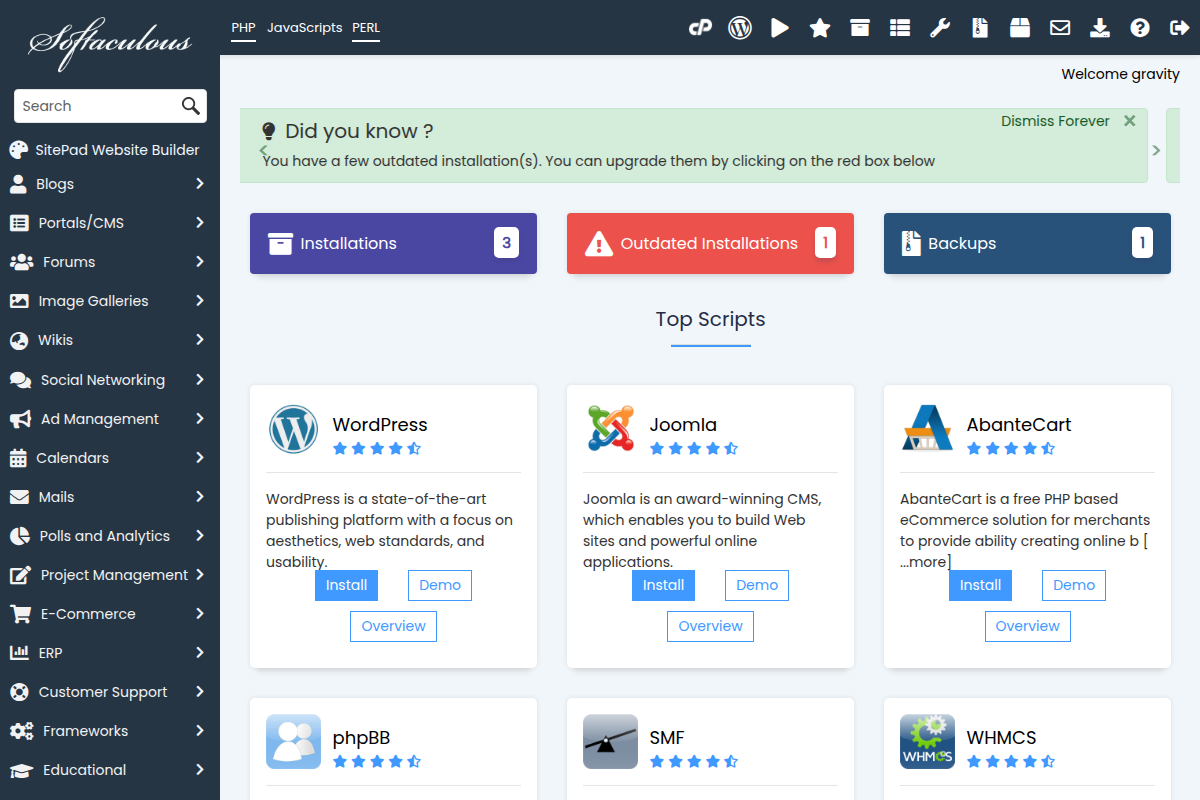
Softaculous in cPanel showing available apps including WordPress