
Option 1: File Manager (Quick & Easy)
cPanel's built-in File Manager lets you upload, edit, and organise files directly in your browser — no software needed.
- From your dashboard, click cPanel
- Open File Manager from the Files section
- Navigate to
public_html— this is your website's root directory - Use the toolbar to Upload, New File, New Folder, or right-click any file to edit it
Tip: The code editor supports syntax highlighting for PHP, HTML, CSS, and JavaScript.
Option 2: FTP (For Bulk Uploads)
FTP is best when uploading many files at once, such as a full website. Use a free FTP client like FileZilla.
FTP Connection Details
| Host | cpanel.gravityhost.co.uk |
| Port | 21 (FTP) or 990 (FTPS) |
| Username | Your cPanel username |
| Password | Your cPanel password |
Upload your files to the public_html folder. Changes appear on your website immediately.
Which Should I Use?
- File Manager — editing a few files, quick CSS/HTML changes, viewing error logs
- FTP — uploading a full website, bulk file transfers, working with large media files
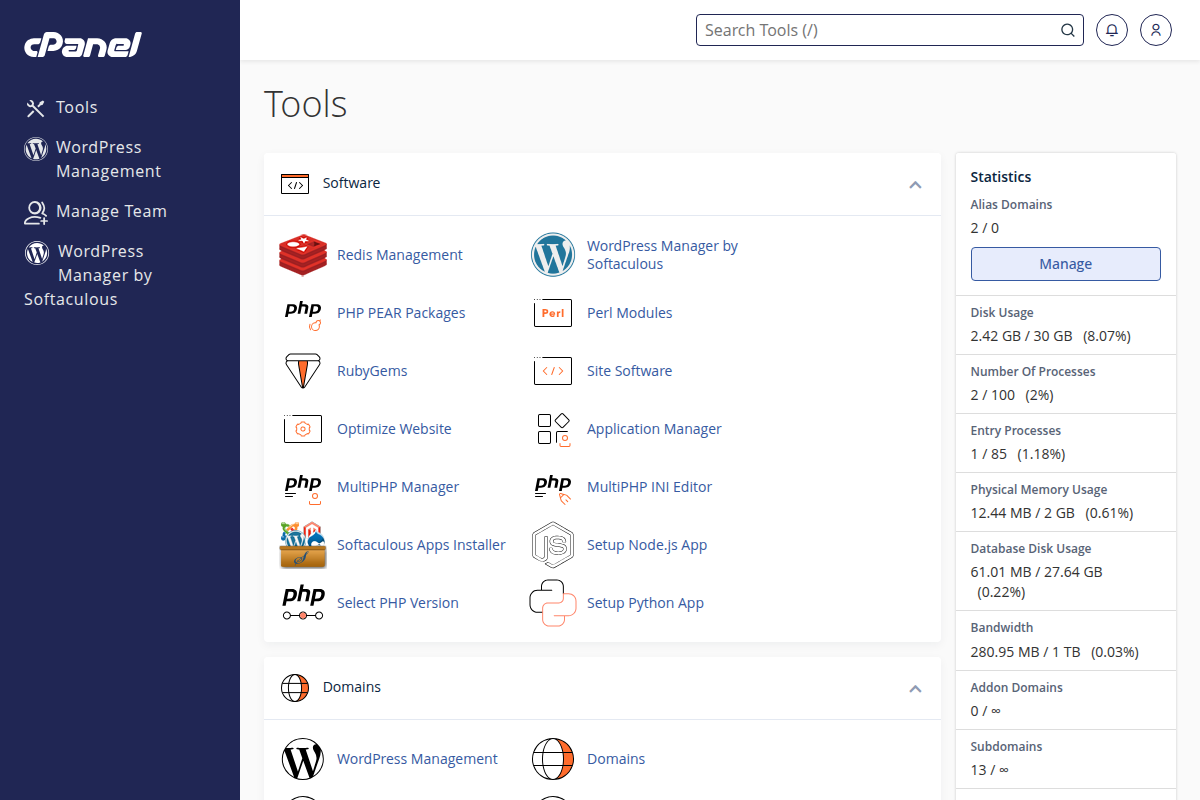
cPanel dashboard — File Manager is in the Files section