
Creating an Email Account
- Log in to cPanel from your dashboard
- Go to Email Accounts
- Click Create
- Enter the username (e.g.
helloforhello@yourdomain.com) - Set a strong password and click Create
Accessing Your Email
Webmail: Go to webmail.yourdomain.com or visit webmail.yourdomain.com or find Webmail in cPanel for instant browser-based access.
Email Client Settings
Use these settings in Outlook, Apple Mail, Thunderbird, or your phone:
| Server | cpanel.gravityhost.co.uk |
| IMAP | 993 (SSL) |
| SMTP | 465 (SSL) |
| Username | Your full email address |
| Password | The password you set when creating the account |
SPF, DKIM & DMARC
These are set up automatically for your domain. You can verify they're working in cPanel under Email Deliverability. If you see any issues, click Repair to fix them.
Forwarding & Autoresponders
In cPanel, use Forwarders to redirect emails to another address, or Autoresponders to send automatic replies (e.g. out-of-office messages).
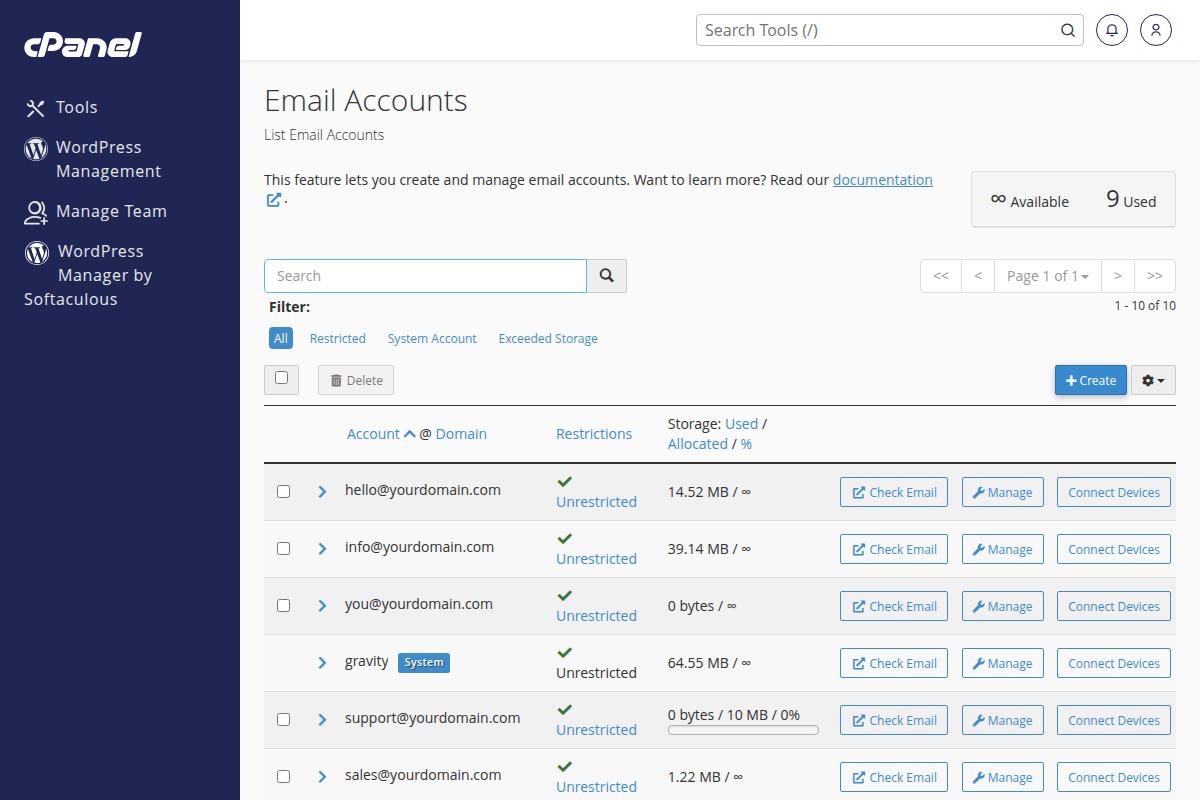
The Email Accounts page in cPanel where you create and manage email addresses