
If you are receiving unwanted emails (spam) to your domain email accounts (like contact@yourdomain.com), you can easily filter or block these messages using your cPanel control panel.
Common Problem Example
I received dozens of spam messages today from strange addresses through my website contact form. Is there an easy way to stop them?
Why This Happens
Spam emails often arrive through website forms or are sent directly to your email addresses. Sometimes, the sender or subject is always similar, making it possible to filter them automatically.
Solution: Use Email Filters and Spam Settings in cPanel
You can control spam and block unwanted messages in cPanel by using Spam Filters and Email Filters.
Step-by-Step Guide
- Log in to cPanel
From your dashboard at gravityhost.co.uk/account, click the cPanel button next to your domain. This logs you in automatically.
Check Your Email Using Webmail
- In cPanel, go to Email Accounts.
- Click Check Email next to your email address.
- Adjust Spam Filter Sensitivity
- In cPanel, on the Check Email page, look for Spam Filters
- You can increase spam detection sensitivity by lowering the score or enabling auto-delete for high-scoring spam.
- Create Email Filters (Recommended)
- In cPanel, on the Check Email page, go to Email Filters
- Click Create a New Filter.
Example filter rule:
- Filter Name: Block Contact Form Spam
- Rules:
- From contains “rjmycka.com”
- OR Subject contains “Aloha writing about your the prices”
- Action: Discard Message
This will automatically delete emails matching those details before they reach your inbox.
- Test and Adjust
- After setting up filters, monitor your inbox to ensure legitimate emails are not being filtered by mistake.
- You can edit or remove filters at any time if needed.
If You Don’t Have cPanel or Email Login Details
If you’re not sure how to access your cPanel or have forgotten your email account password, please see our guide on resetting your client area password. If you still need help, contact Gravity Host support and we’ll assist you in regaining access.
Summary
- Spam Filters reduce general spam, but Email Filters let you target specific unwanted messages.
- Filters are flexible: block by sender, subject, or keywords.
- Always double-check your filters so important emails aren’t lost!
Still having issues?
Contact Gravity Host support for help with advanced filtering or if you need us to set up rules for you.
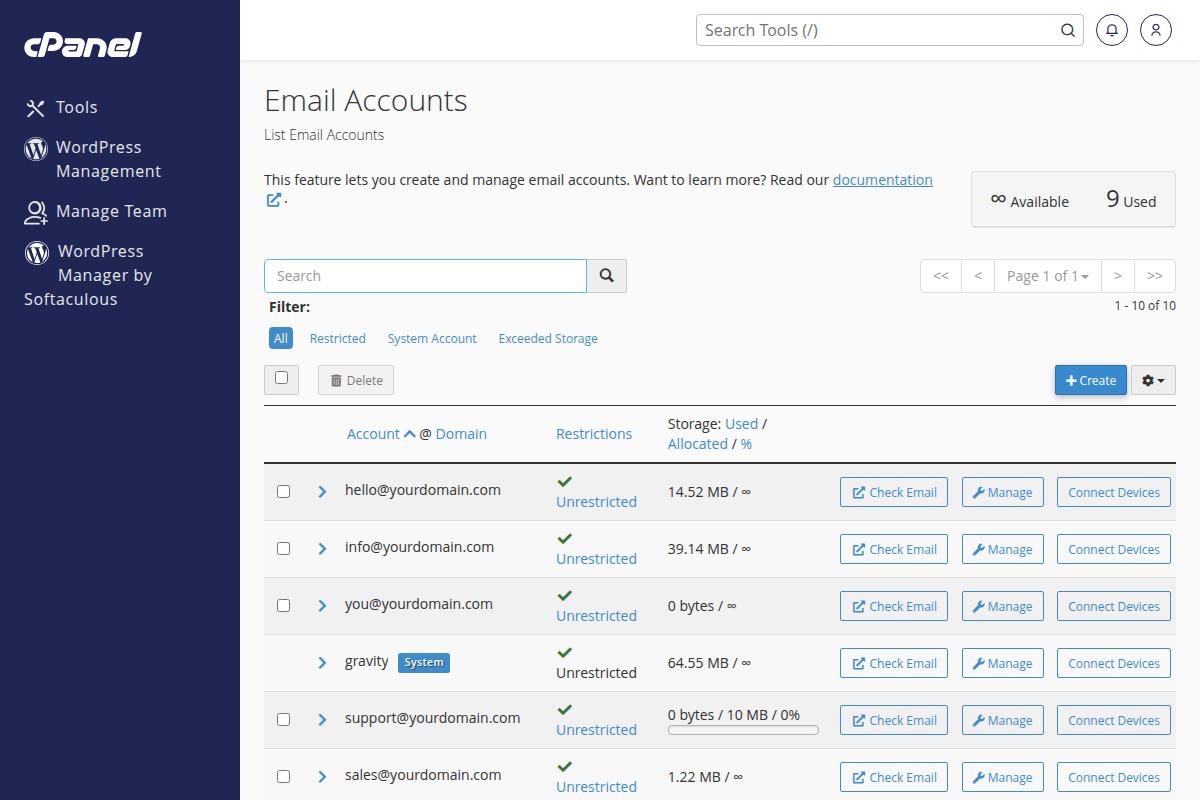
Email management in cPanel — from here you can access filters and spam settings