
Quick Setup (iPhone & Android)
Your Gravity Host email works with any email app. Here are the settings you need:
Connection Settings
| Incoming (IMAP) | cpanel.gravityhost.co.uk port 993 (SSL) |
| Outgoing (SMTP) | cpanel.gravityhost.co.uk port 465 (SSL) |
| Username | Your full email address (e.g. you@yourdomain.com) |
| Password | The password you set when creating the email account |
iPhone / iPad
- Go to Settings > Mail > Accounts > Add Account > Other
- Tap Add Mail Account
- Enter your name, email address, password, and a description
- Select IMAP
- Enter the server settings above for both incoming and outgoing
- Tap Save
Android (Gmail App)
- Open Gmail and tap your profile icon > Add another account
- Select Other
- Enter your email address and tap Manual setup
- Select IMAP
- Enter the server settings above
- Tap Next and complete setup
Outlook App
- Open Outlook and tap Add Account
- Enter your email address
- Select IMAP when prompted for account type
- Enter the server settings above
Tip
Use IMAP (not POP3) so your emails sync across all your devices. Changes on your phone will also appear in webmail and vice versa.
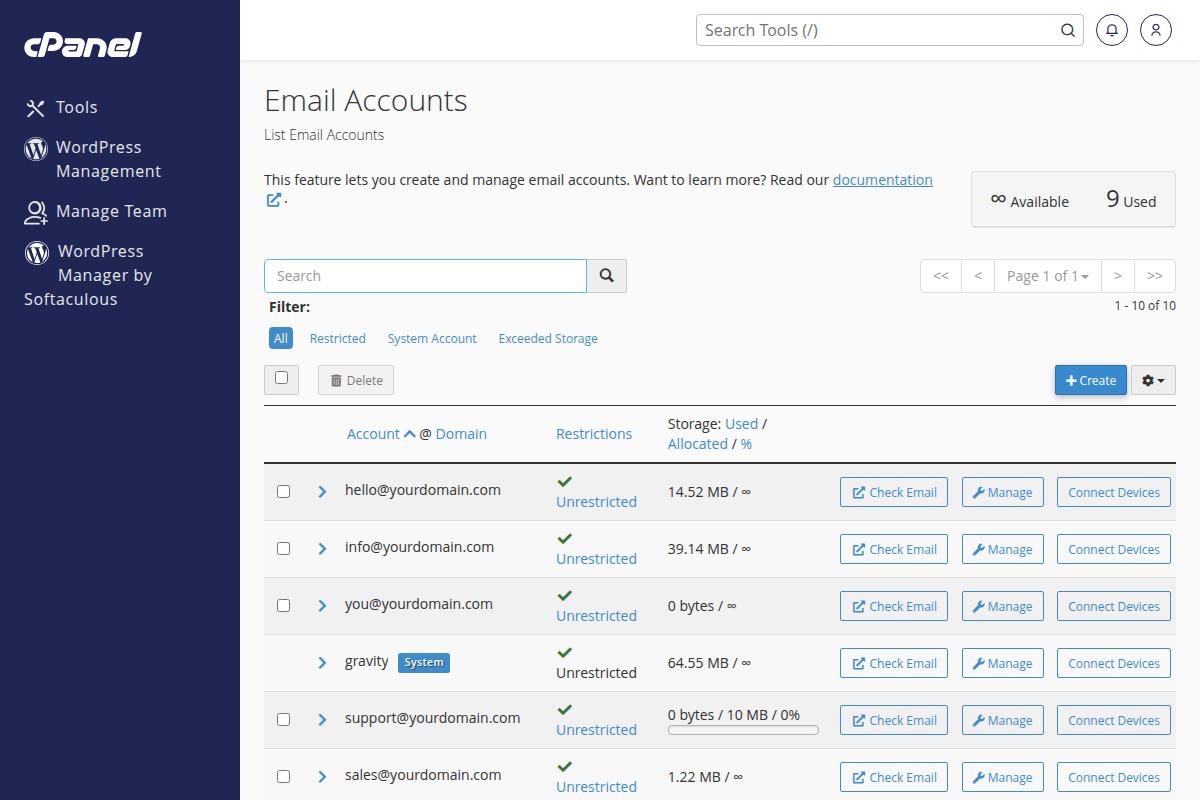
Create and manage email accounts in cPanel