Install Card Payments + Buy Now
For OpenCart 3.0. Nine steps, all in your OpenCart admin and your Stripe account. Do it in Test mode first, then switch to Live. You need the zip from your purchase email or from Your software.
Watch the whole install
Recorded on our demo shop with test keys. Every step is written out below.
Step by step
-
Upload the zip
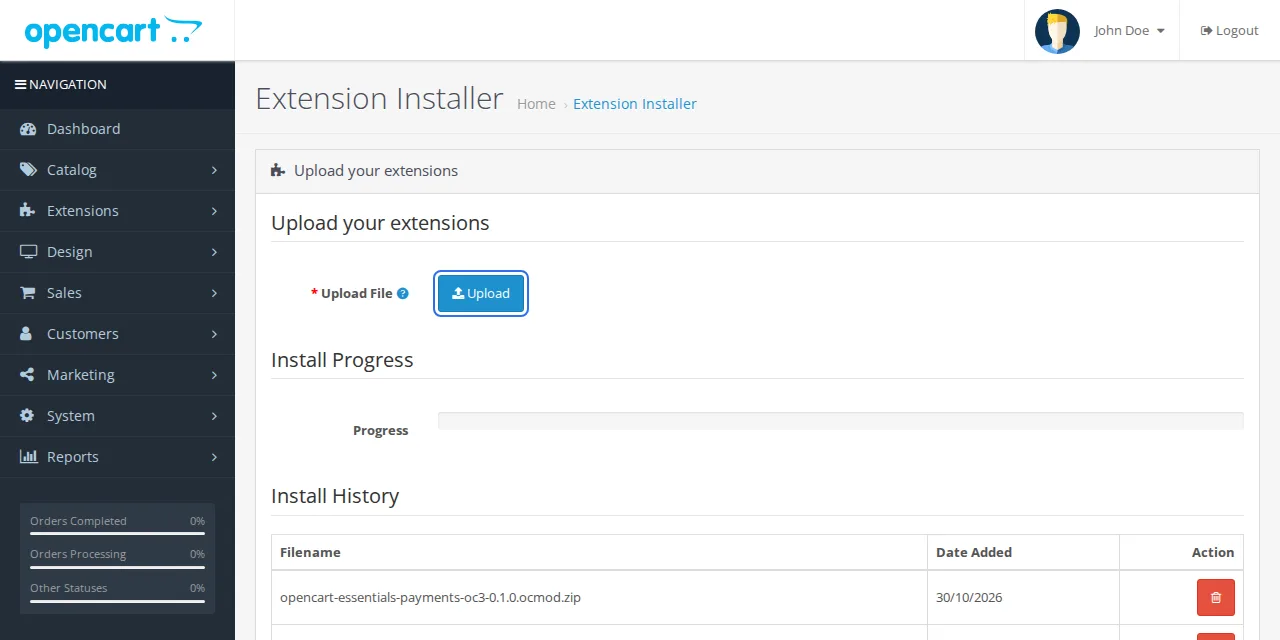
In your OpenCart admin, open Extensions, then Installer. Press Upload and choose the zip you downloaded. Wait for the progress bar to go green.
-
Refresh modifications
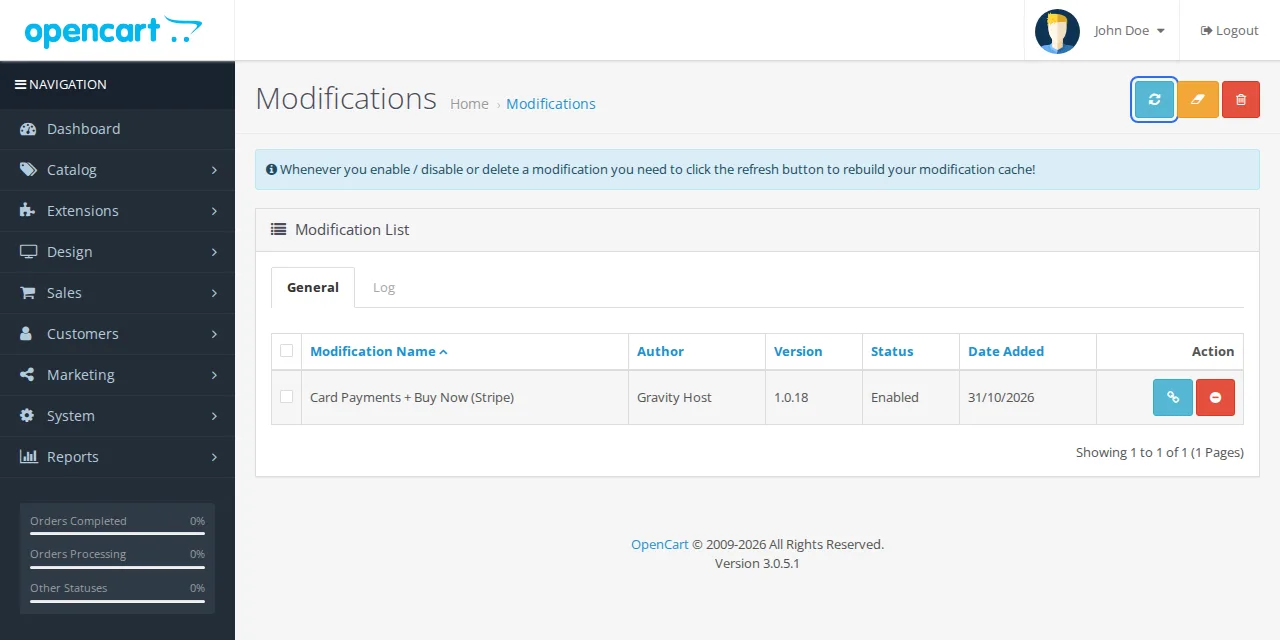
Open Extensions, then Modifications, and press the blue Refresh button at the top right. "Card Payments + Buy Now (Stripe)" appears in the list.
-
Install it
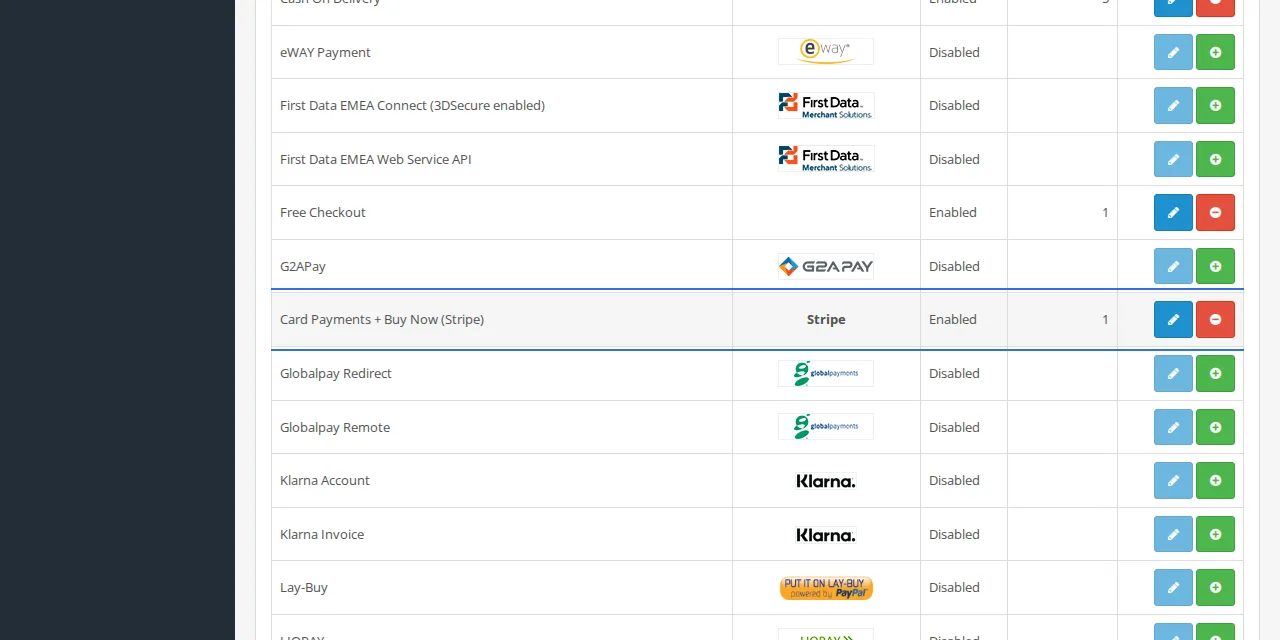
Open Extensions, then Extensions, and choose Payments from the drop-down. Find "Card Payments + Buy Now (Stripe)", press the green + to install it, then the blue pencil to edit it.
-
Connect Stripe, in Test mode first
On the Connection tab, set Mode to Test. Paste your publishable key (
pk_test_…, from Stripe: Developers, API keys). For the restricted key, press Create the key in Stripe: Stripe opens with the right permissions ticked, so press Create key, copy therk_test_…key and paste it in. Save, then press Check connection. It should say "Connected to Stripe".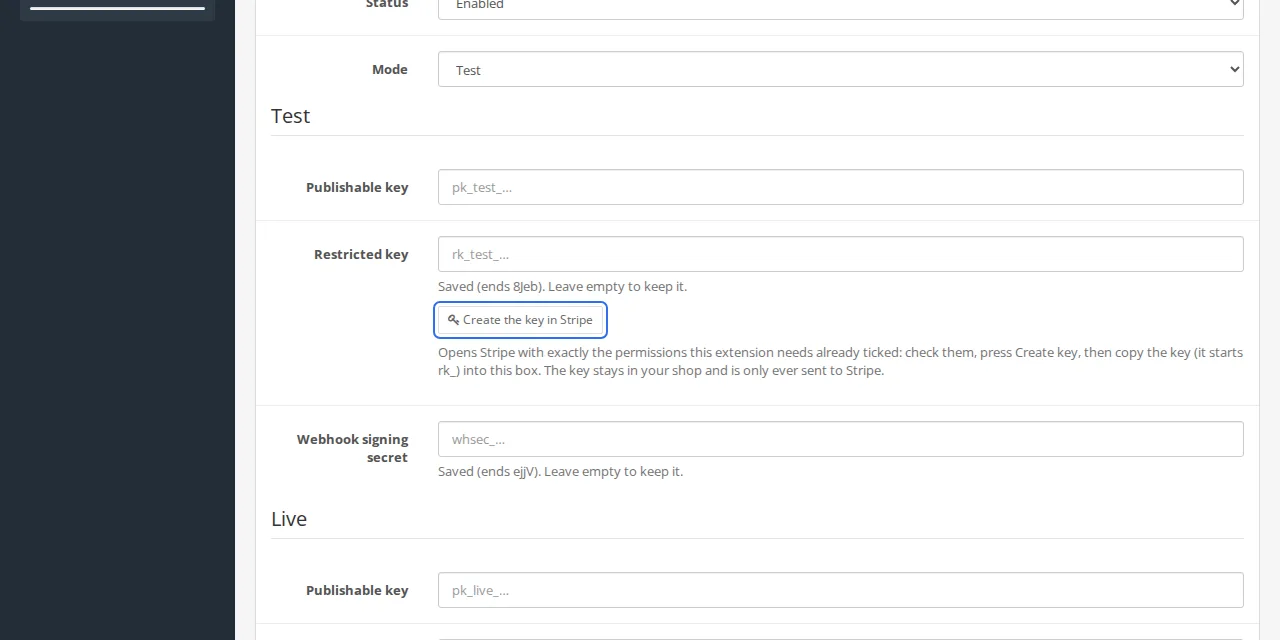
-
Set up the webhook
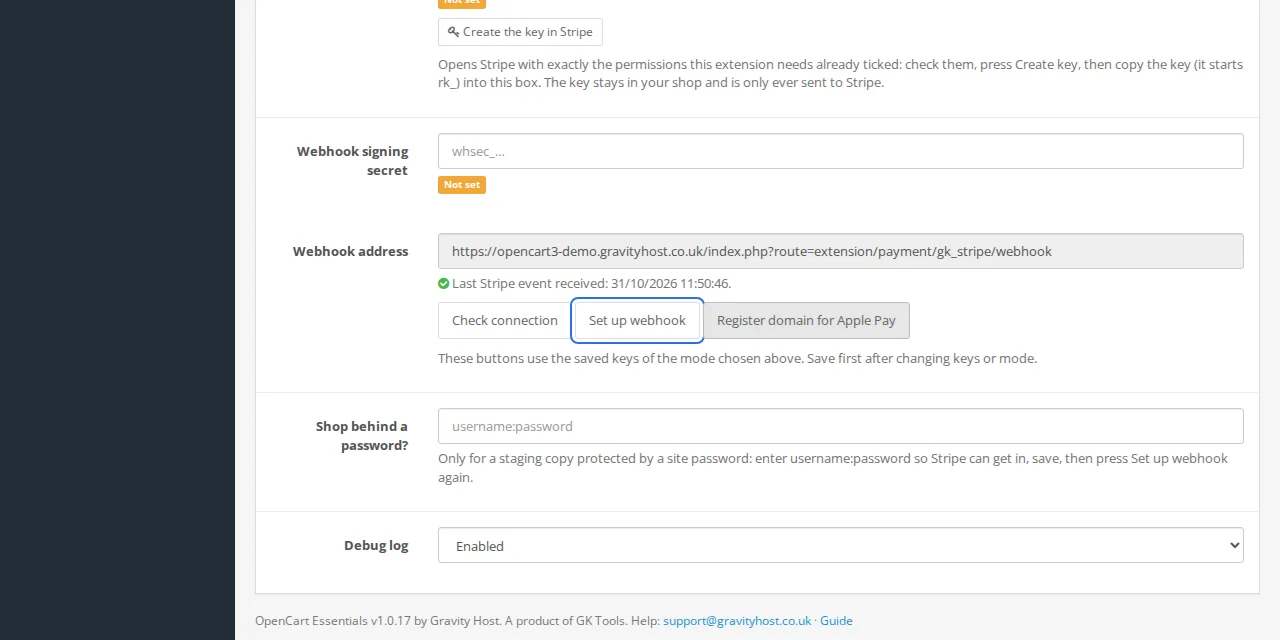
On the same tab, press Set up webhook. It should say "Webhook set up for test mode. Its signing secret is saved." If your test shop sits behind a site password, fill in the webhook login box first.
-
Turn it on
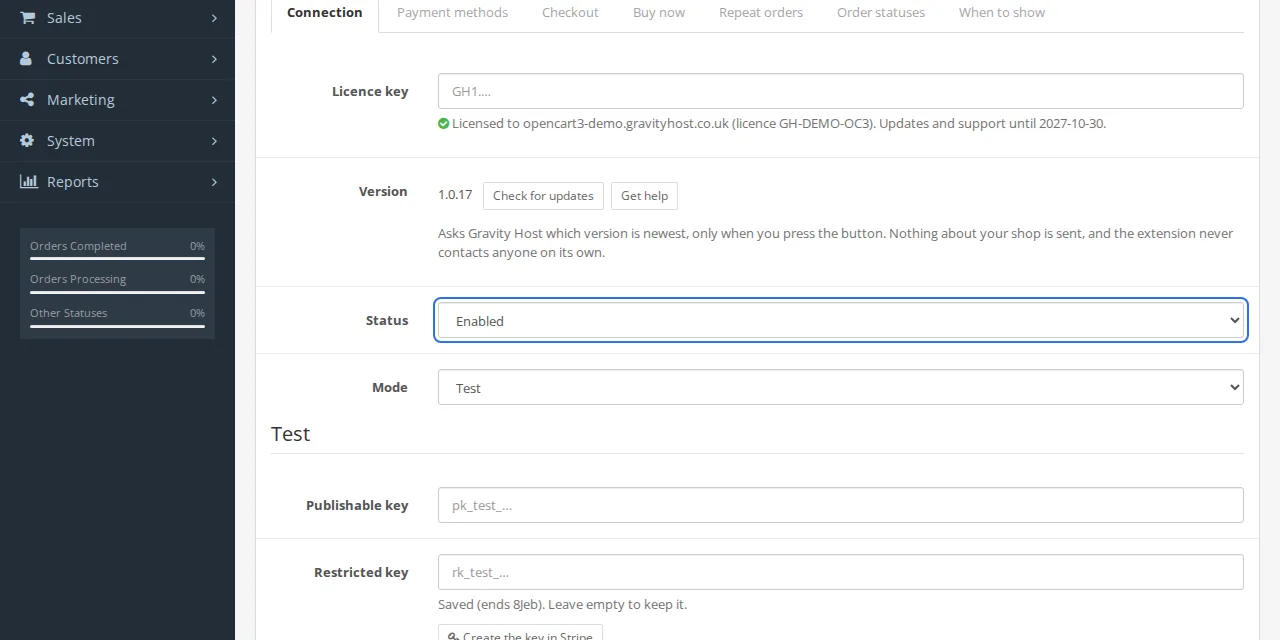
Set Status to Enabled. Choose what to offer on the Payment methods tab, the Buy now buttons on the Buy now tab, and repeat orders on the Repeat orders tab if you want them. Save.
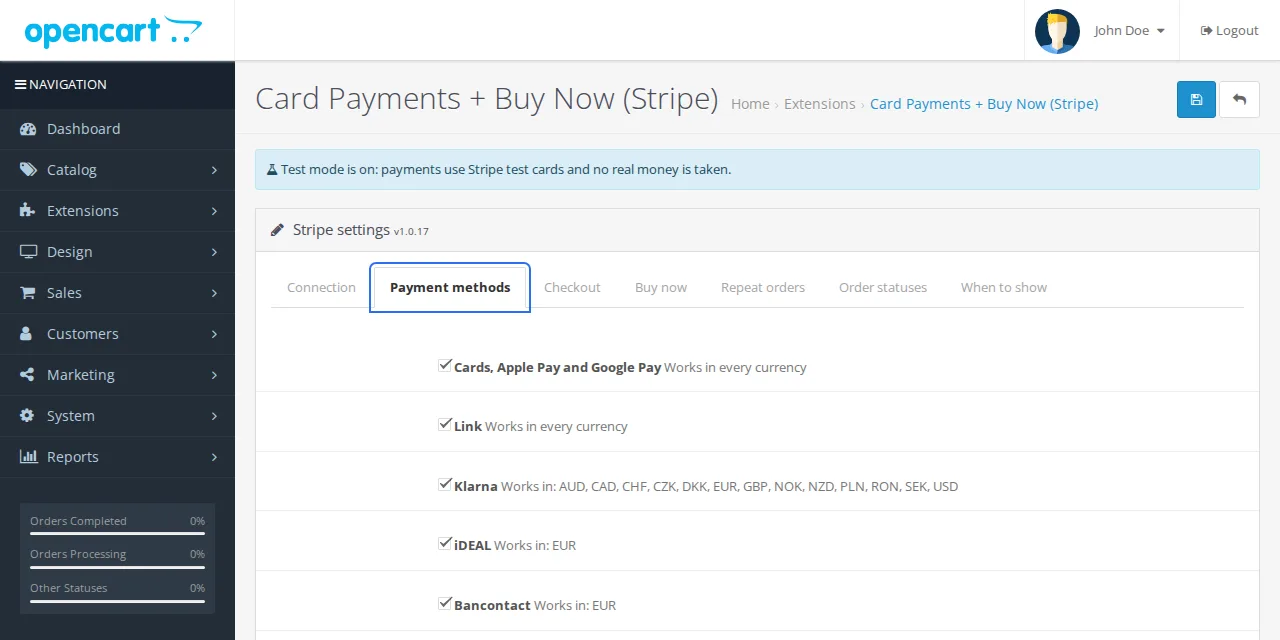
The Payment methods tab 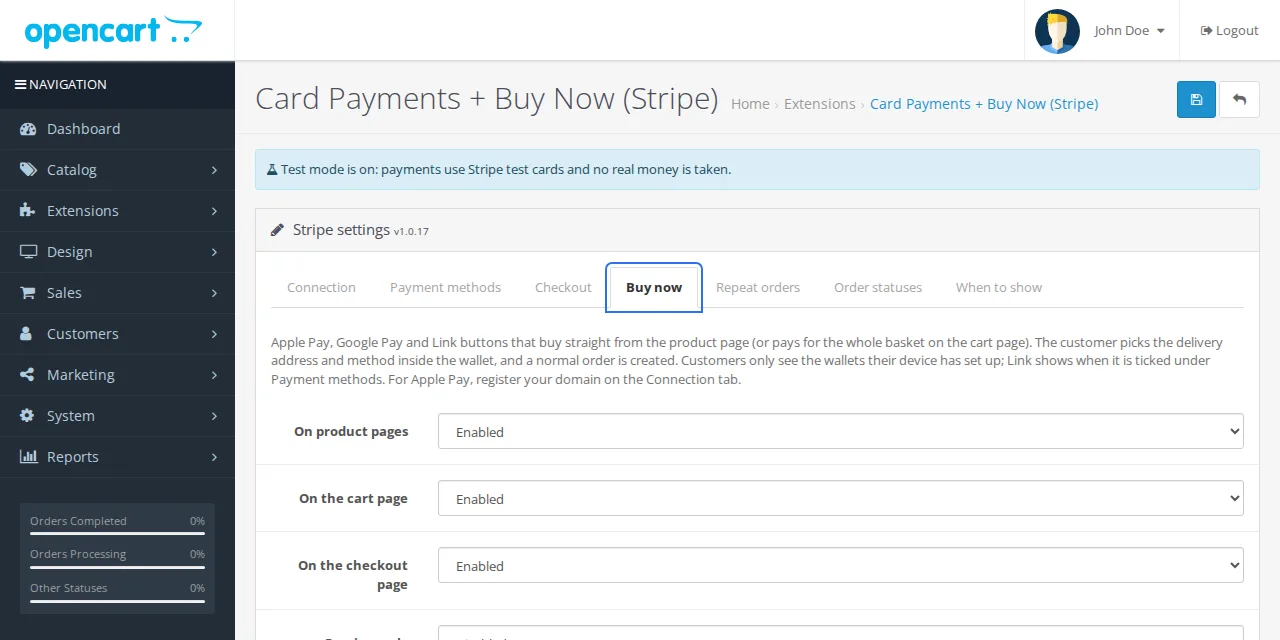
The Buy now tab -
Test an order
Place an order in your shop with Stripe's test card
4242 4242 4242 4242, any future date and any CVC. Then check it under Sales, Orders.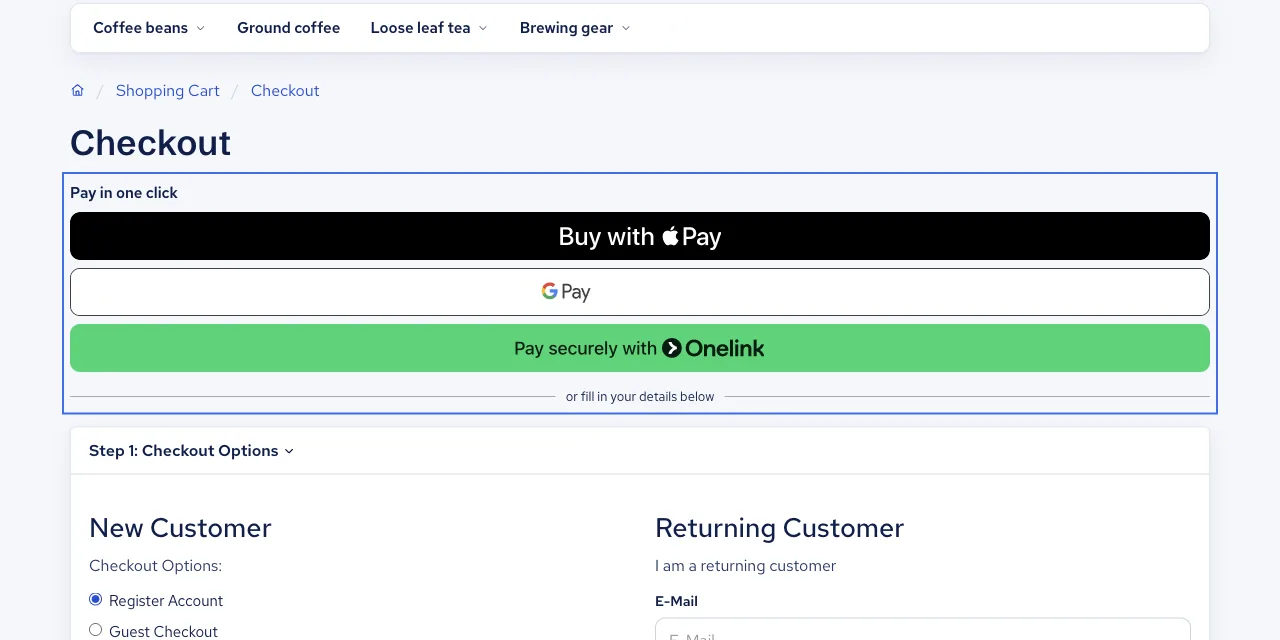
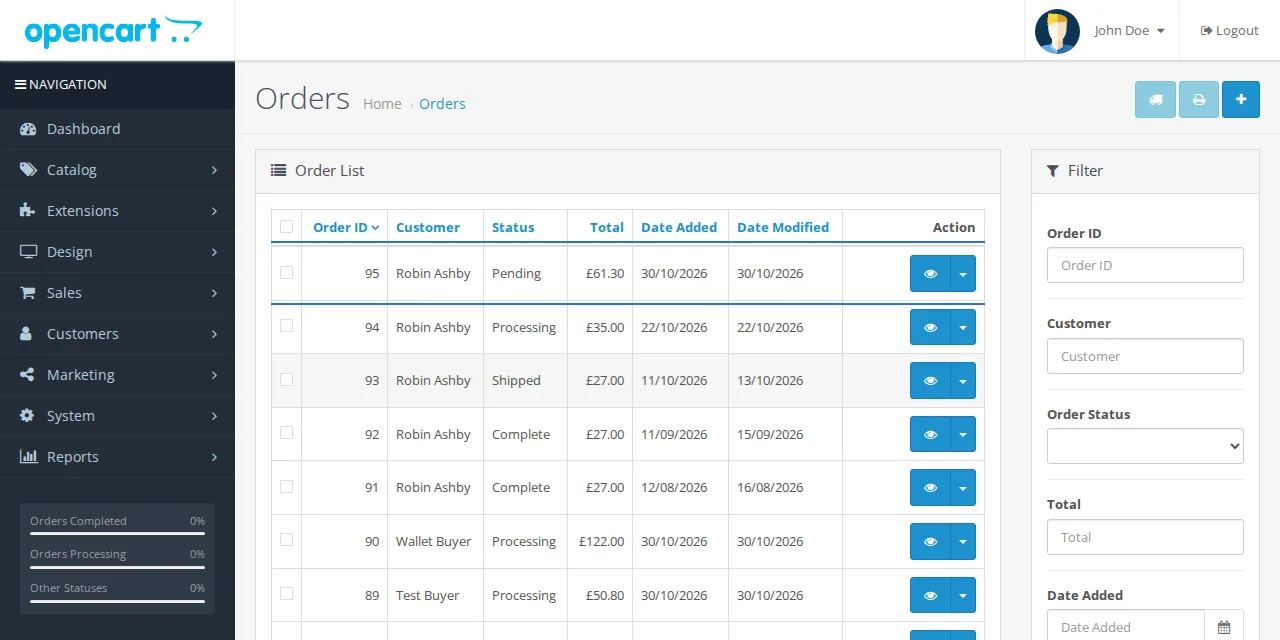
The test order under Sales, Orders -
Go live
Do steps 4 and 5 again with Mode set to Live: your
pk_live_…key, then a newrk_live_…key from Create the key in Stripe. Stripe shows a live key only once, so paste it straight in. Save.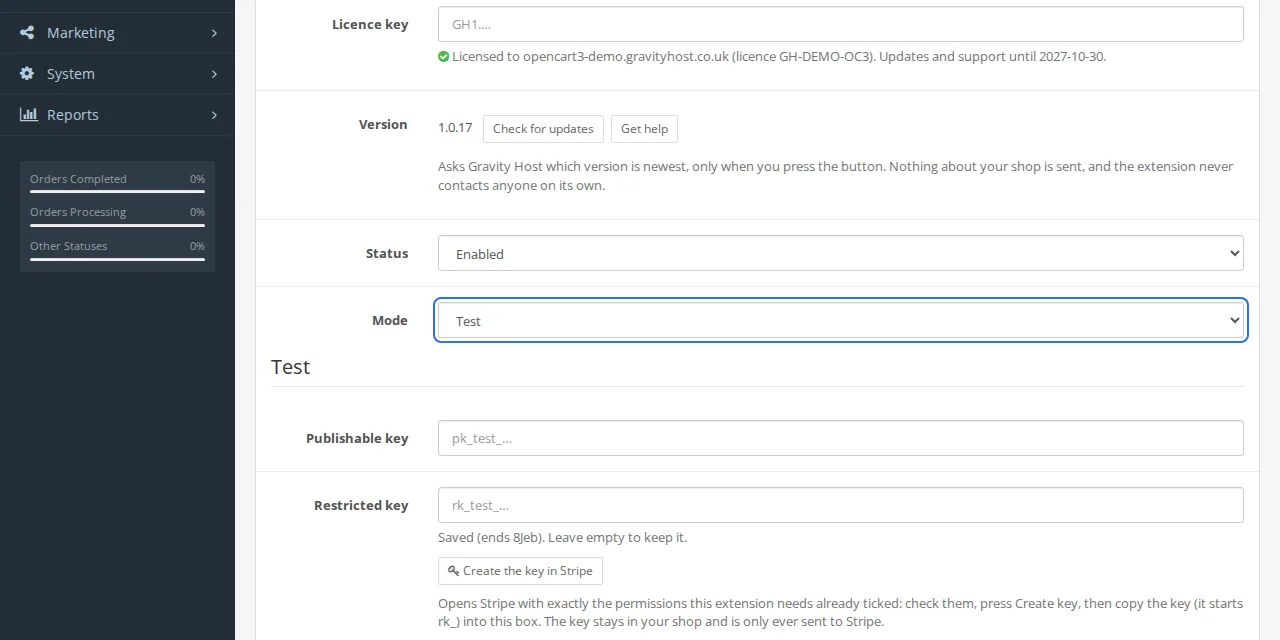
-
Add your licence key
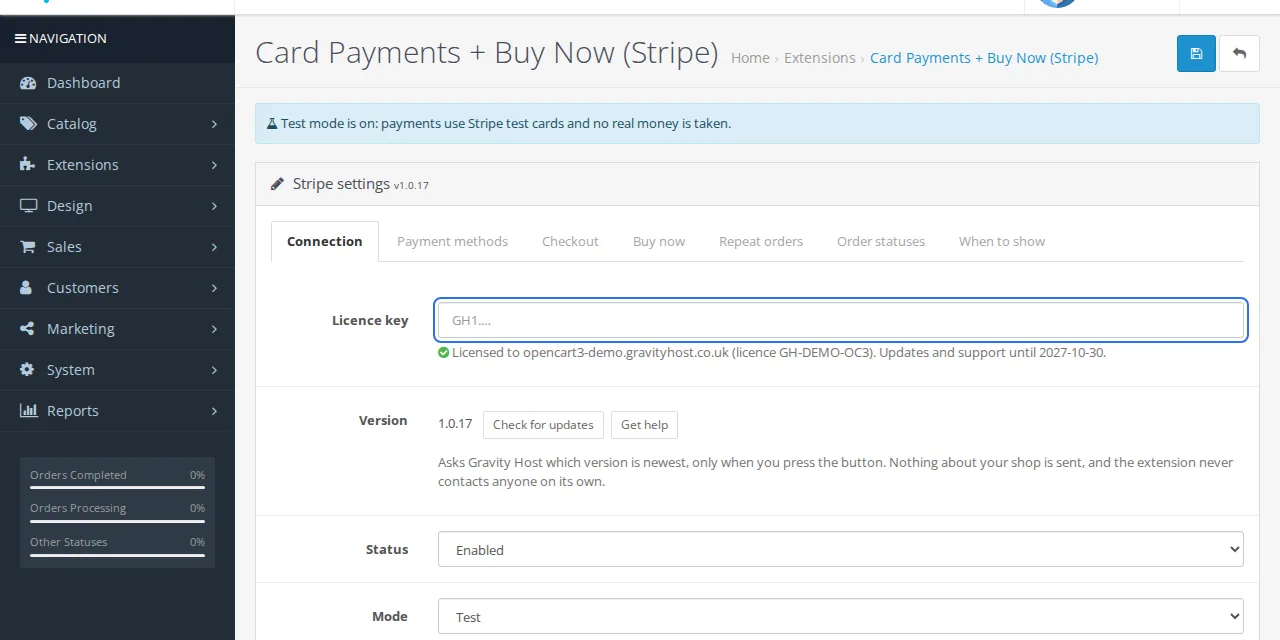
On the Connection tab, paste the licence key from your purchase email into Licence key and save. Without it your shop still takes payments; the admin just shows a reminder. Test, staging and local copies of your shop need no key.

Updating later
Download the new zip from Your software and do steps 1 and 2 again. Your settings stay as they are. "Check for updates" on the Connection tab tells you when a newer version is out.
Stuck?
Email support@gravityhost.co.uk or open a ticket and tell us which step. We reply around the clock.