Install Delivery
For OpenCart 3.0. Five steps, all in your OpenCart admin. You need the zip from your purchase email or from Your software.
Already using the Fresh theme? Don't install this. Fresh already includes Delivery, so you have it at Extensions > Extensions > Modules. If you install this download on a Fresh shop and later remove it, OpenCart also deletes files the two share, and Fresh needs them.
Step by step
-
Upload the zip
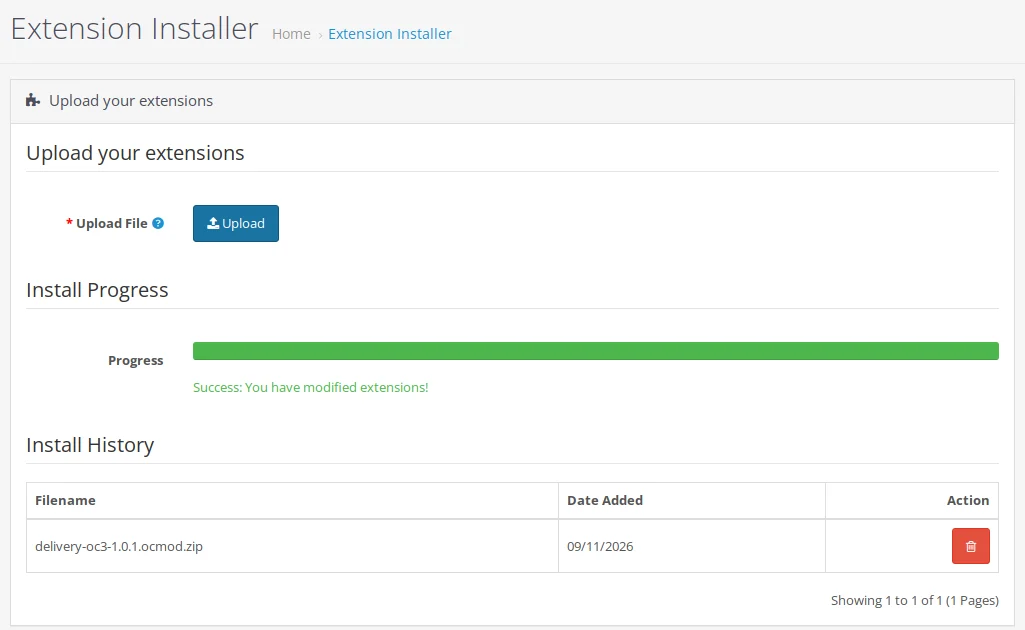
In your OpenCart admin, open Extensions, then Installer. Press Upload and choose the zip you downloaded.
-
Install it
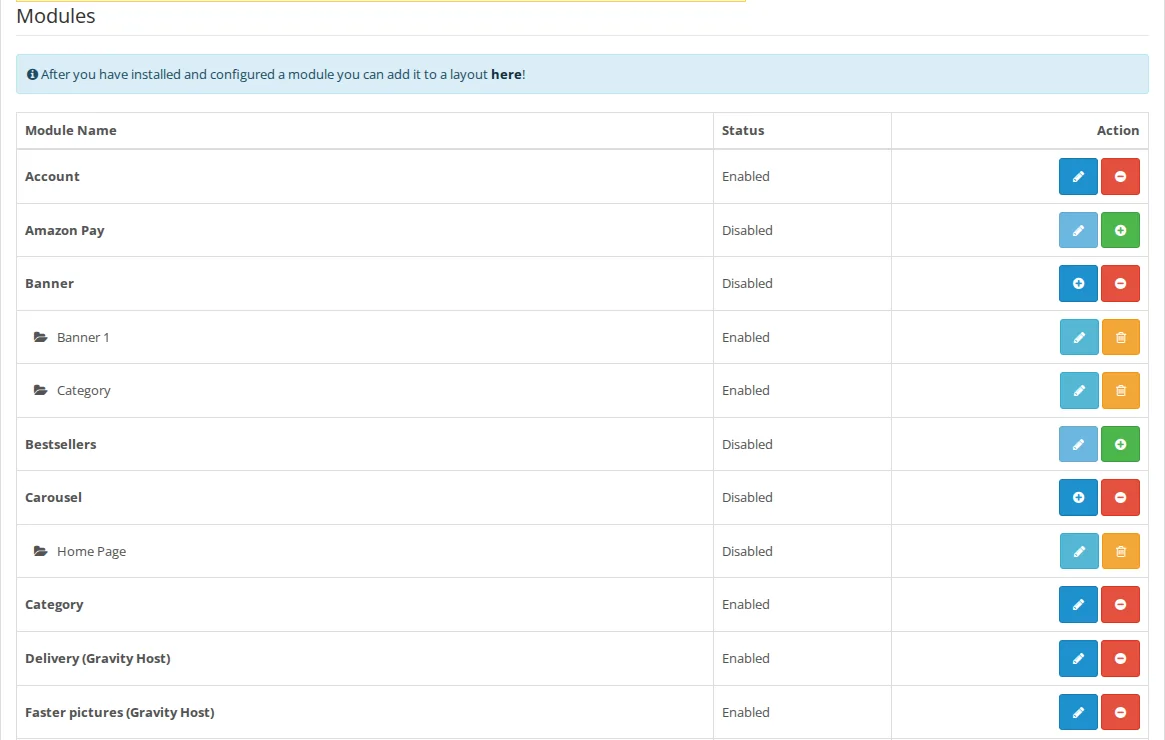
Open Extensions, then Extensions, and choose Modules from the drop-down. Find "Delivery (Gravity Host)", press the green +, then the blue pencil. Its delivery method is set up at Extensions > Shipping for you.
-
Add your delivery methods
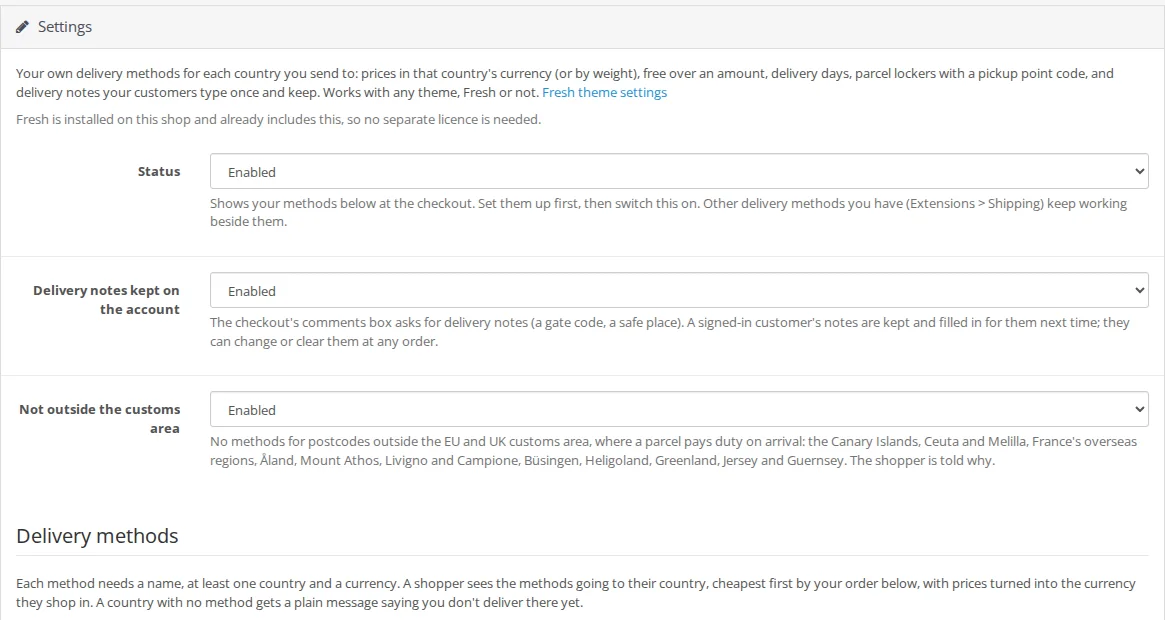
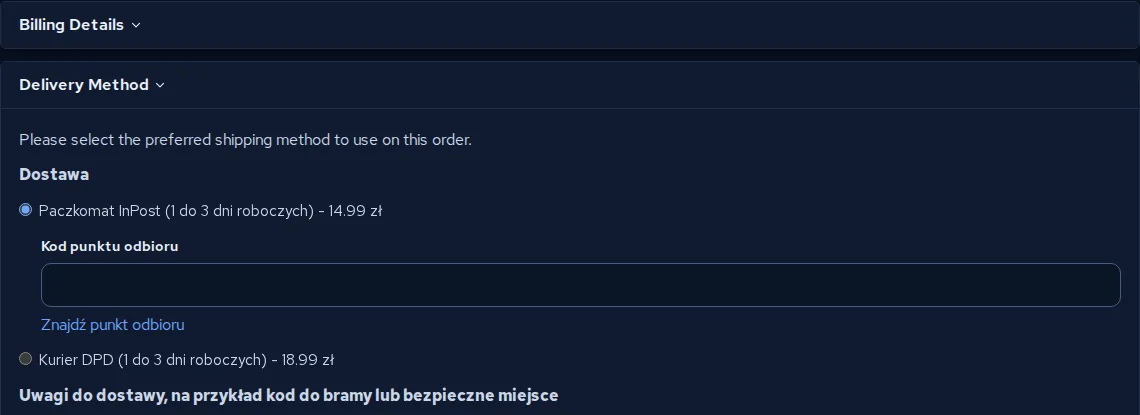
Under Delivery methods, press Add a method. Give it a name, the countries it goes to and the currency you pay the courier in, then its price, or prices by weight. Add a Free from amount and Delivery days if you want them. For a parcel locker, tick Pickup point: the shopper is asked for the locker's code.
-
Switch it on and add your licence key
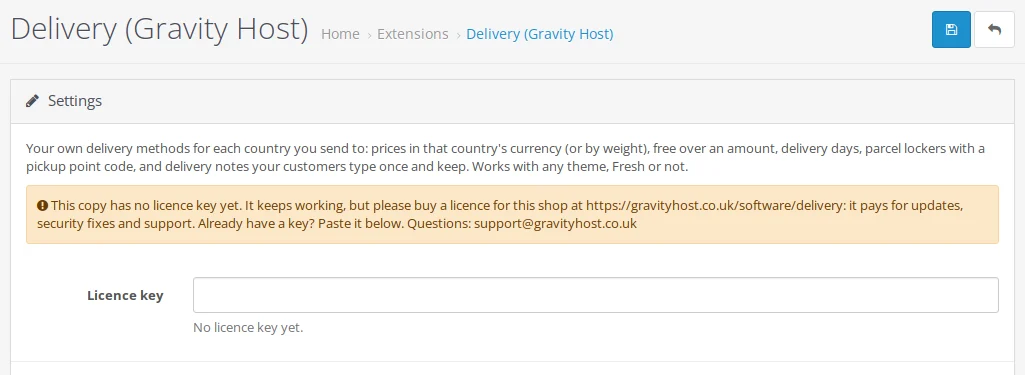
Paste the licence key from your purchase email into the Licence key box at the top, set Status to Enabled and press Save. Your other delivery methods keep working beside these. Test, staging and local copies of your shop need no key.
-
Check your checkout
In a private window, put something in the basket and go to the checkout with an address in each country you send to. You see that country's methods, cheapest first, in the currency you picked.
Updating later
Download the new zip from Your software and upload it (step 1). Your settings and methods stay as they are.
Stuck?
Email support@gravityhost.co.uk or open a ticket and tell us which step. We reply around the clock.