Install Fresh theme
For OpenCart 3.0. Six steps, all in your OpenCart admin. You need the zip from your purchase email or from Your software.
Watch the whole install
Recorded on our demo shop with test keys. Every step is written out below.
Step by step
-
Upload the zip
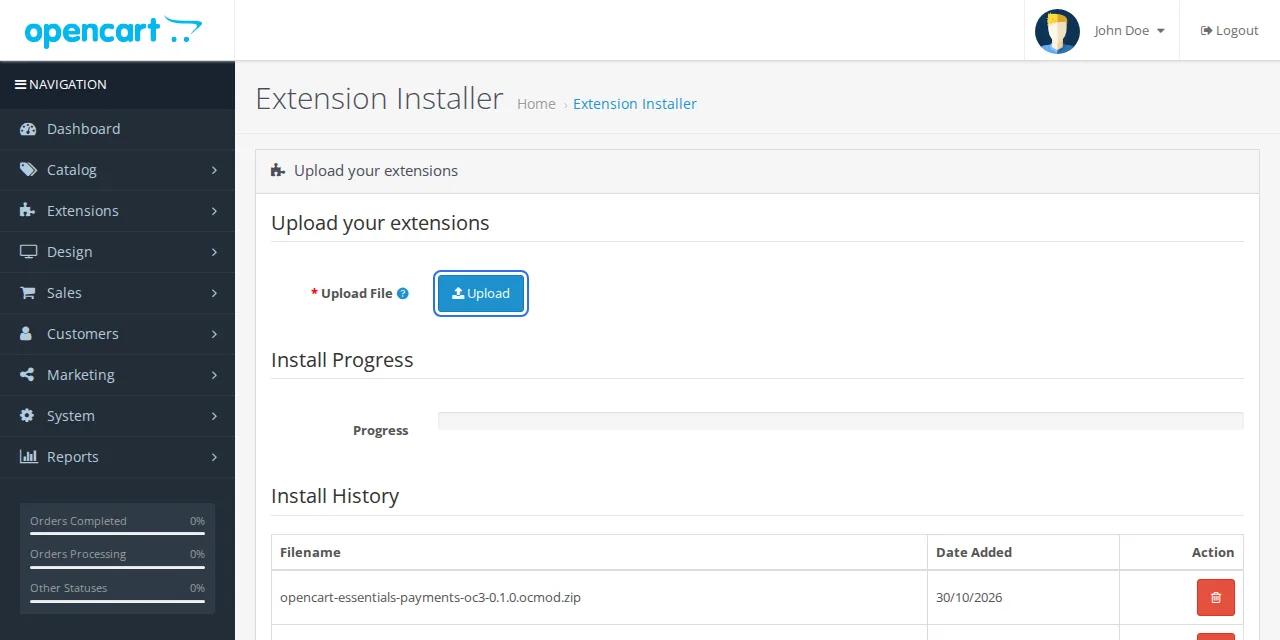
In your OpenCart admin, open Extensions, then Installer. Press Upload and choose the zip you downloaded.
-
Install it
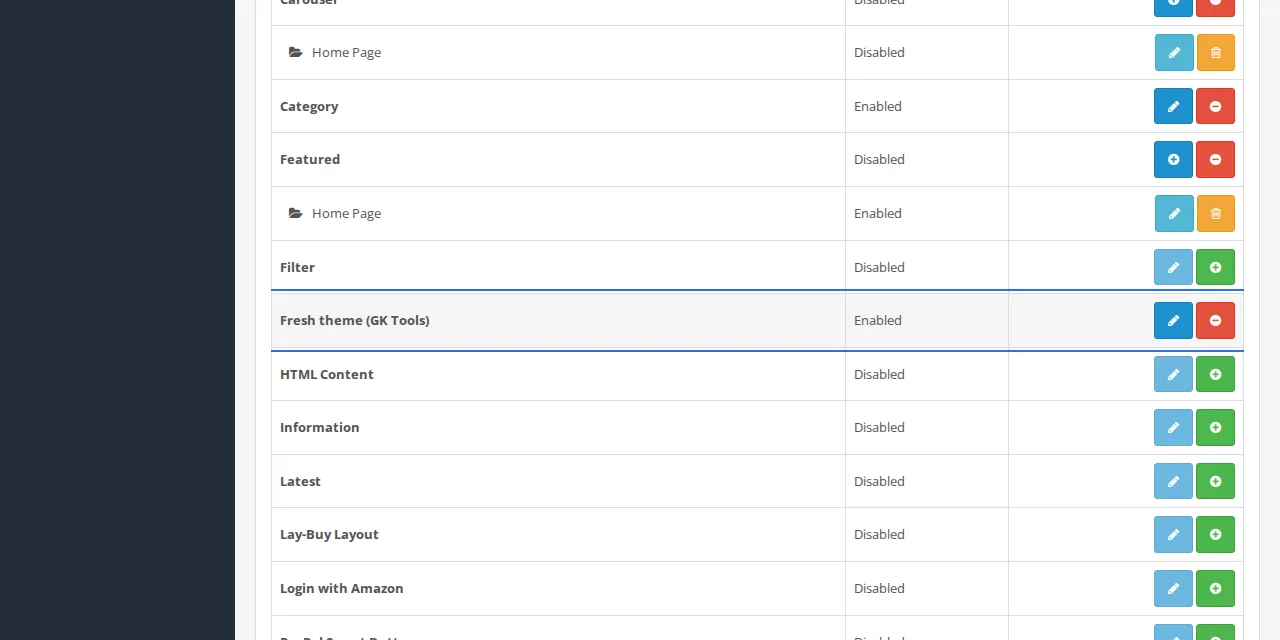
Open Extensions, then Extensions, and choose Modules from the drop-down. Find "Fresh theme (GK Tools)", press the green +, then the blue pencil.
-
Choose your look
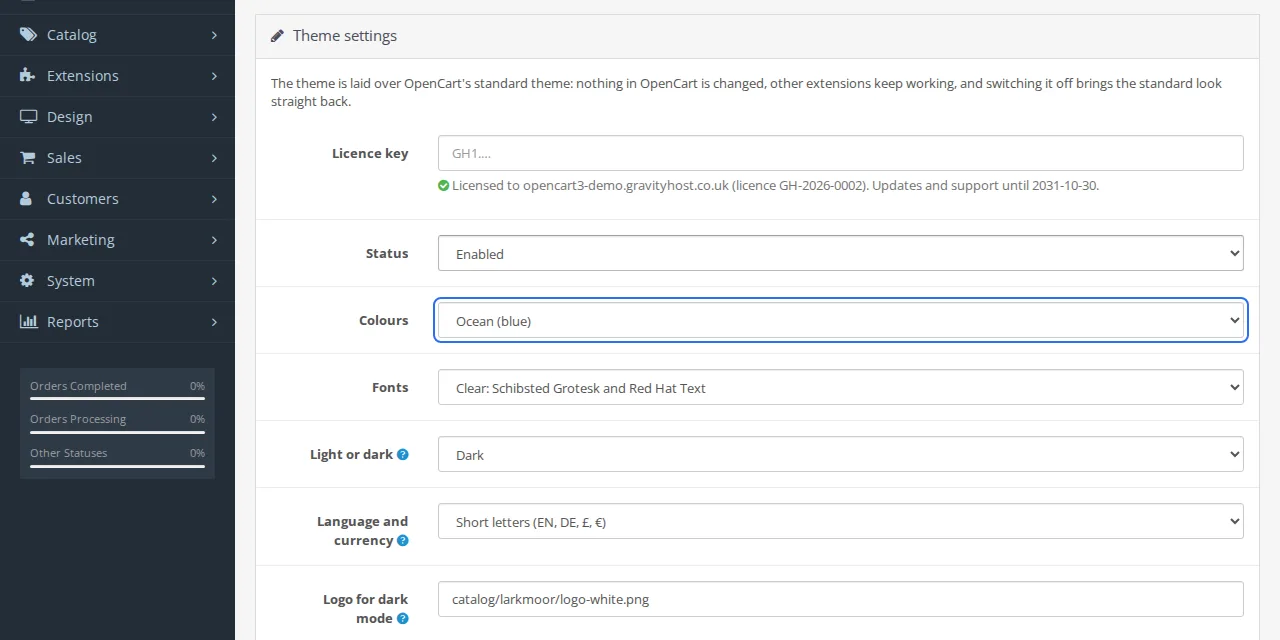
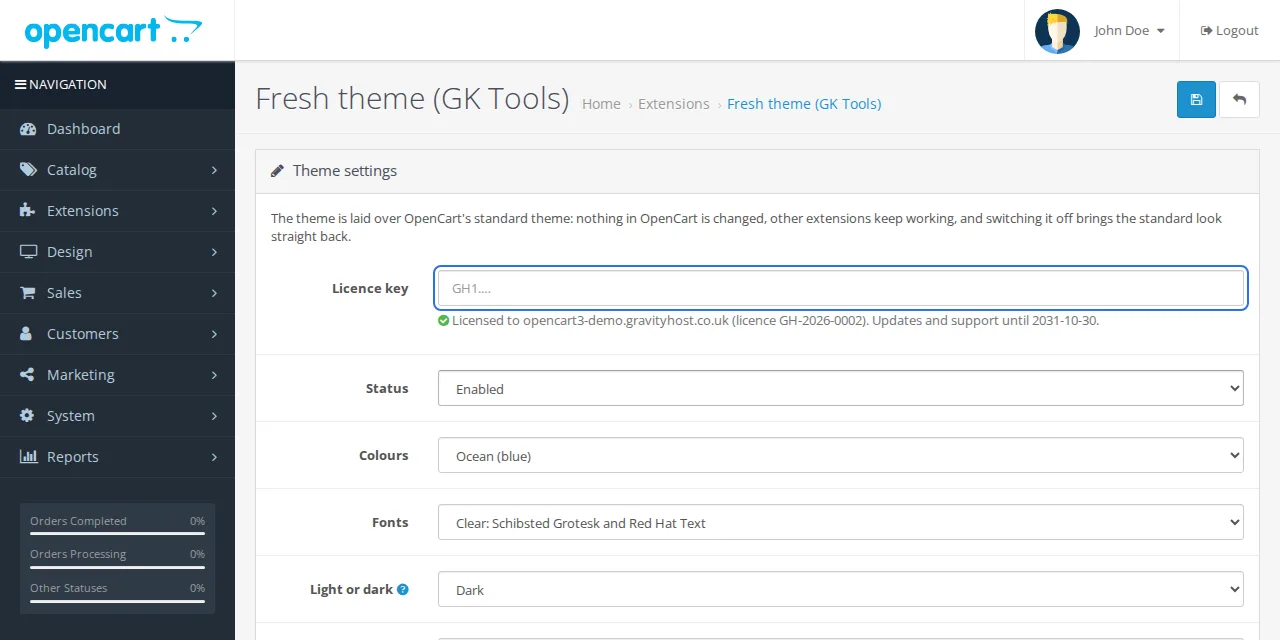
Set Status to Enabled and pick Colours, Fonts and Light or dark. If your logo is dark, add a Logo for dark mode. Optional: a home banner, the lines under Add to Cart, payment logos and the footer credits (both off unless you turn them on).
-
Save
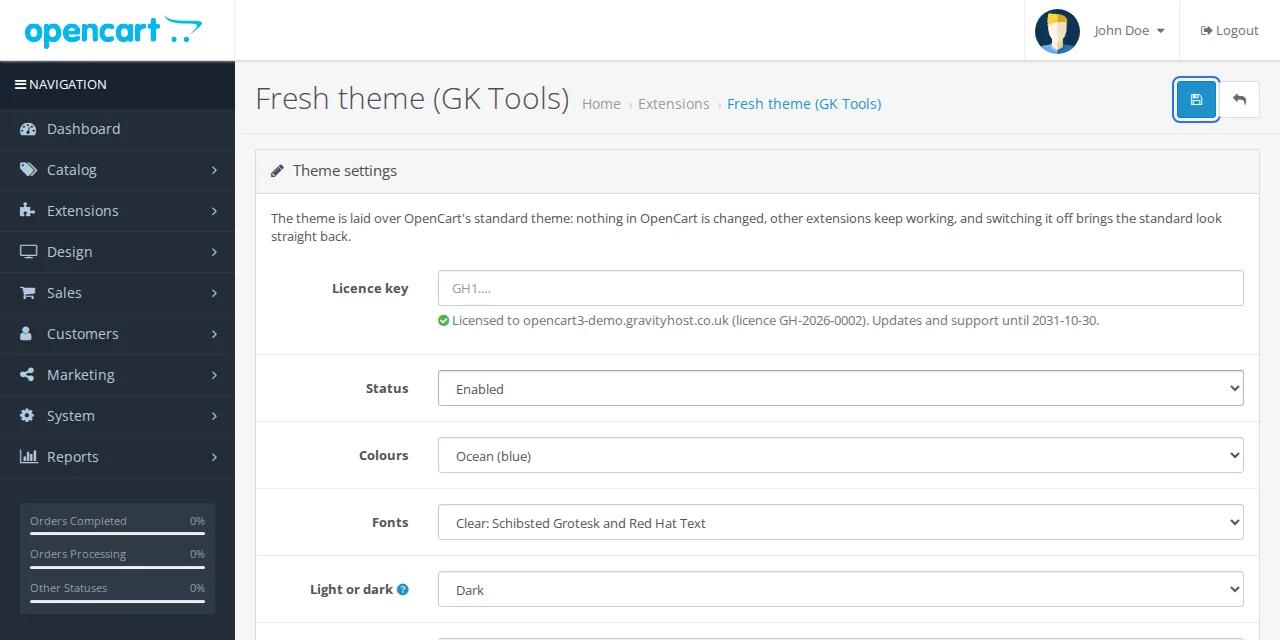
Press Save. This also switches on the theme's account pages, its emails and the language to currency link. After every update, open the settings and press Save once.
-
Add your licence key
Paste the licence key from your purchase email into the Licence key box and save.
-
Check your shop
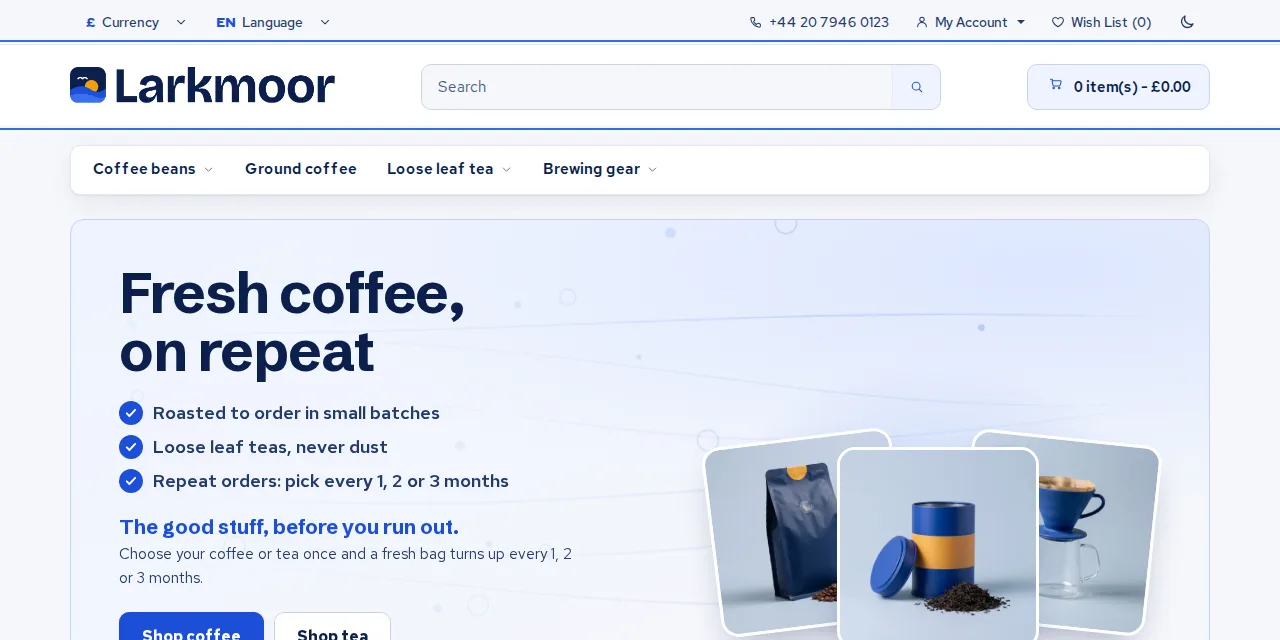
Open your shop in a private window, on a phone and on a computer.

Updating later
Download the new zip from Your software and upload it (step 1), then open the settings and press Save (step 4).
Stuck?
Email support@gravityhost.co.uk or open a ticket and tell us which step. We reply around the clock.