Built a Website with AI? Here is How to Put It Online (HTML or PHP)

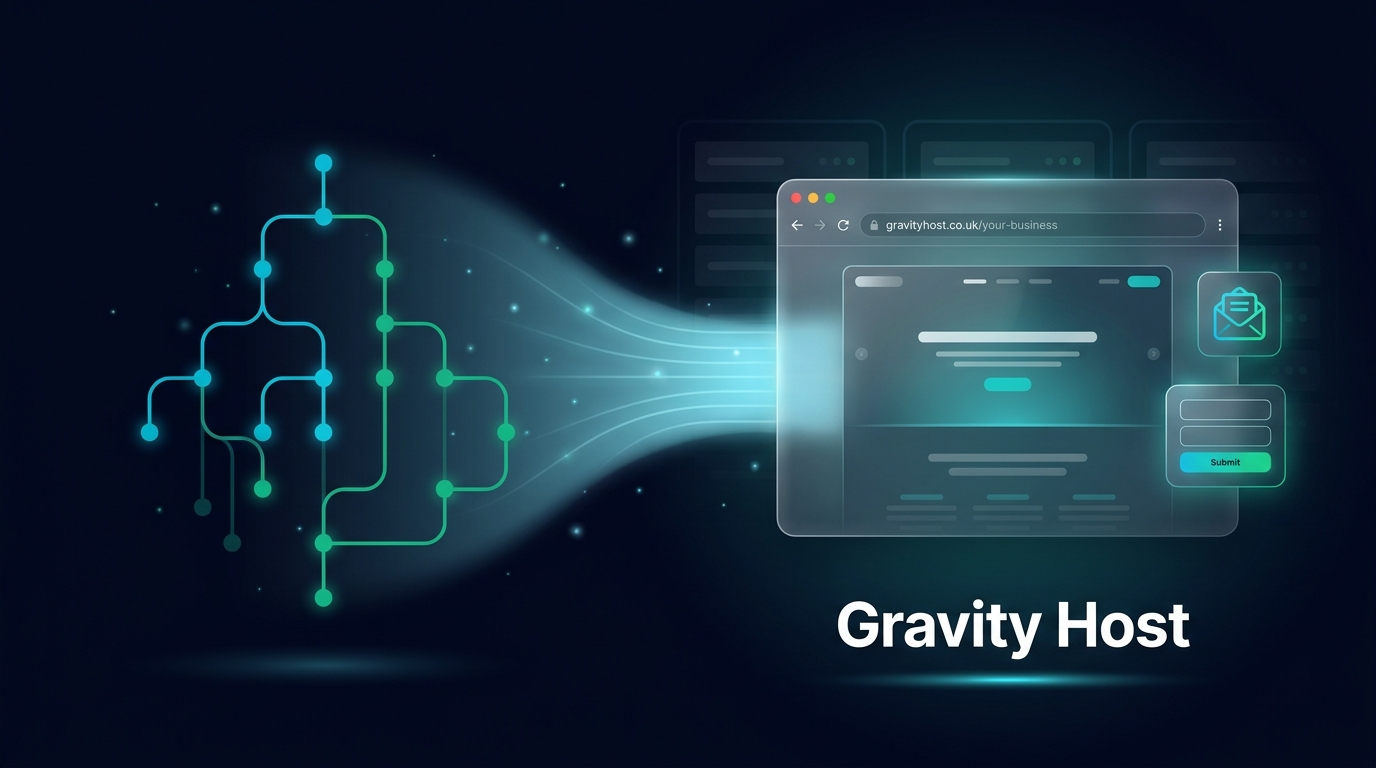
AI tools like ChatGPT and Claude are remarkably good at writing the actual code for a web page. Describe what you want — "a one-page site for my plumbing business with a contact form" — and the AI hands you a finished HTML or PHP file. But here is the part that catches everyone out: a file on your computer is not a website yet. To put it online so customers can actually visit, you need somewhere to host it. The good news is that hosting an AI-built site is genuinely simple, and yes — you can host it with us. Here is how it all works, in plain English.
What the AI actually gave you
When an AI assistant "builds you a website", what it really produces is one or more files. Usually that is an index.html file (your page), often a style.css file (the design), and sometimes a script.js file (anything interactive). If you asked for something with a working contact form or a bit of logic, it may hand you a .php file instead. Together these are your website — they will even open in your own browser. The catch is that, sitting on your laptop, only you can see them. Hosting is what makes them visible to the world.
What "hosting" actually means
A website needs to live on a computer that is switched on all the time and connected to the internet — a web server. Hosting is simply renting your own space on one of those servers. You upload your files, point your domain name (such as yourbusiness.co.uk) at the space, and from then on anyone who types your address sees your site. That is the whole idea: the AI writes the code, hosting puts it somewhere the public can reach it.
What is the "domain" part?
Your domain name is your address on the web — the yourbusiness.co.uk or yourbusiness.com that people type to reach you. It is separate from the hosting: hosting is the space your files sit in, and the domain is the signpost that points to that space. You rent a domain by the year and keep it for as long as you renew it; it is yours to point wherever you like.
Two practical tips. First, pick a name that is short, easy to say aloud and matches your business — a .co.uk is the natural choice for a UK company, while .com suits anyone trading more widely. Second, watch the renewal price, not just the first-year price: many registrars lure you in with a 1p or £1 first year and then renew at ten or twenty times that. We break down how to avoid that trap, with a full UK price comparison, in The Real Cost of a Domain Name: Registration vs Renewal. With Gravity Host your domain, hosting and email all live in one account, and the renewal price never jumps.
Static or dynamic — which did your AI make?
It helps to know which of two types you have, because it affects nothing about the upload but everything about what your site can do:
- A static site (HTML, CSS, JavaScript). This is a "brochure" website — pages that look great and load instantly but do not process anything on the server. Perfect for a small business presence, a portfolio, a landing page or an event.
- A dynamic site (PHP). PHP runs on the server, so it can do things like send a contact form to your inbox, show different content, or talk to a database. If your AI gave you a
.phpfile, it built you something dynamic.
Both kinds run perfectly on standard cPanel hosting. Gravity Host has PHP enabled out of the box, so a .php file simply works the moment you upload it — there is no extra setup, no server to configure.
How to put your AI-built site online
The whole process takes minutes:
- Get hosting and a domain. Choose a plan and register the web address you want (or bring one you already own). They are two separate costs — hosting is the space your files live in, the domain is your address — but with Gravity Host you can buy both in one place and manage them from a single account, so there is nothing to wire up between different companies.
- Upload your files. Log in to cPanel, open File Manager, go into the
public_htmlfolder, and drag your files in — exactly like copying files into a folder on your own computer. Make sure your homepage is namedindex.html(orindex.php); that is the file visitors see first. Prefer FTP? That works too. - Turn on the padlock. Free SSL is included and applied automatically, so your site loads over secure
https://with the padlock that visitors expect. - Visit your domain. That is it — your site is live for the world to see.
If you later decide you want a full content system you can edit without code, you can install WordPress in one click from the same control panel. But a hand-built AI page does not need WordPress at all — it stands on its own.
A quick checklist before you publish AI-generated code
AI writes good code, but it does not know your business or test its own work. Five minutes of checking saves embarrassment later:
- Open it locally first. Double-click the
index.htmlfile to see it render in your browser before it goes anywhere public. - Click every link and test every form. AI sometimes inserts placeholder links that go nowhere, or a contact form that looks real but is not wired up to send anything. Confirm messages actually reach your inbox.
- Never leave secrets in the code. If the AI pasted an API key, password or private token into a file, take it out — anything in a public web page can be read by anyone. Keep secrets server-side.
- Check the images. AI often references pictures you do not actually have. Make sure every image loads and replace any broken ones.
- Look at it on a phone. Most of your visitors will. Resize the window or open it on your mobile; if it looks cramped, just ask the AI to "make this fully responsive and mobile-friendly" and re-upload.
Why host your AI site with Gravity Host
An AI experiment deserves a home that will not get in your way:
- It just works. Static HTML and PHP both run with no configuration — upload and go.
- Easy uploads. The cPanel File Manager means no command line and no developer required; if you can drag a file into a folder, you can publish your site.
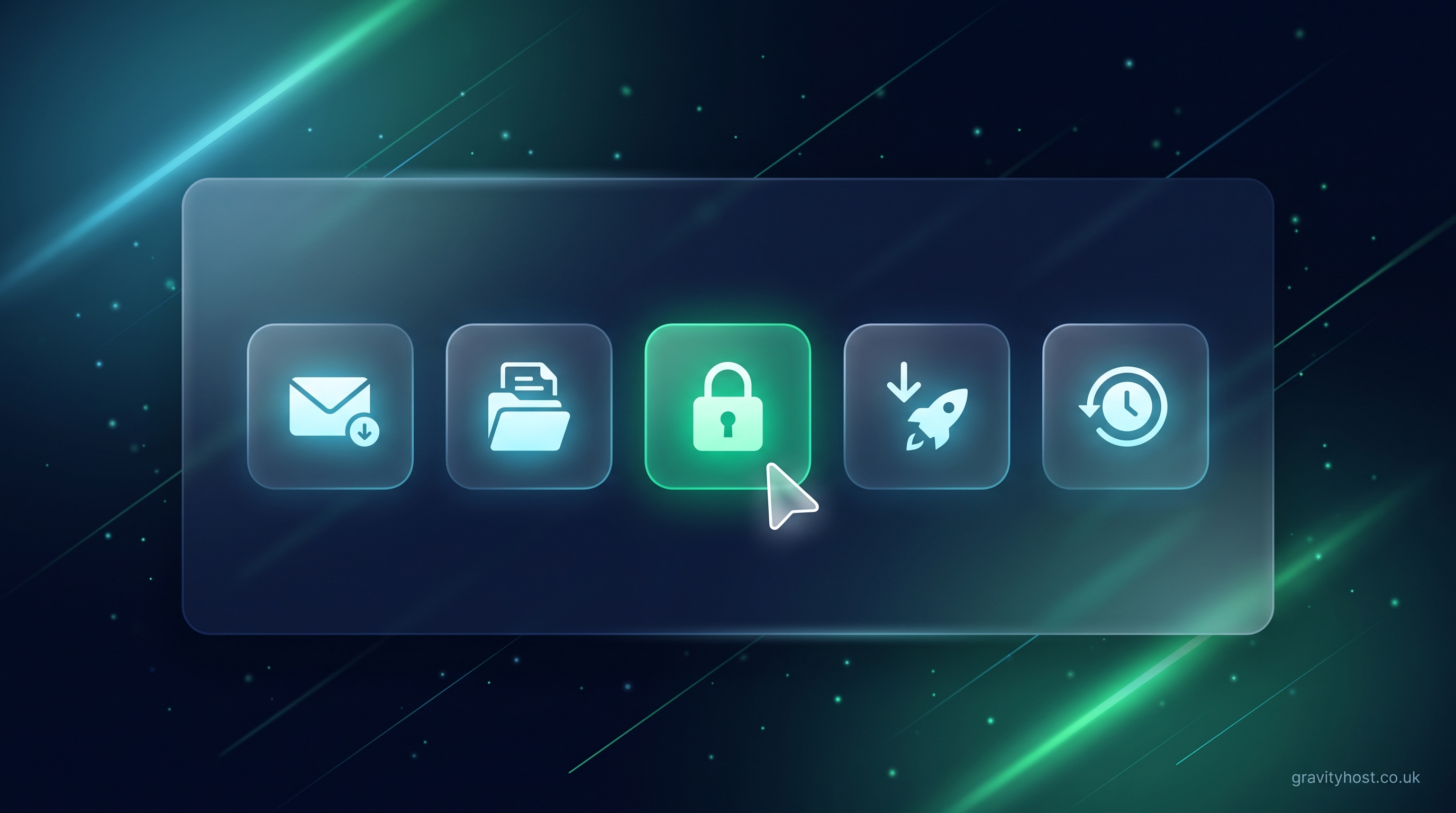
- Fast and UK-based. NVMe SSD servers in the UK keep your pages loading quickly, with free SSL on every plan.
- Safe to experiment. Daily backups mean a tweak gone wrong is a quick restore, not a lost weekend.
- Room to grow. Add business email on your domain, install WordPress later, or add more pages whenever you like.
- You own it. The files are yours; you are never locked in and can move them whenever you wish.
Hosting plans start at £75 a year — with 40% off your first year, so £45 to begin — and include everything above, with real UK support if you get stuck on the upload. (Your domain name is a separate, low yearly cost.) So go ahead and let your AI assistant build that page — when it hands you the file, you will know exactly what to do with it.
Host it on Gravity Host
Fast UK NVMe hosting, free SSL, daily backups and support from a small UK team. Domains are priced separately, and the renewal price is shown before you buy.
Build a website with AI, then host it here — Take a site made with an AI builder, put it on your own domain and keep control of it. The routes that work and the steps in order.
See hosting plans